What Is a High Resolution AI Image Generator?
A high resolution AI image generator creates detailed images at large pixel dimensions, typically 2K (2048×2048), 4K (4096×4096), or higher. These tools use artificial intelligence to produce sharp visuals suitable for professional applications like billboard printing, game development, and product design.
How AI Generates High-Resolution Visuals
AI image generation relies on models trained on millions of images to learn patterns, textures, and compositions. When you enter a text prompt, the system processes your request through neural networks that build the image pixel by pixel.
Most traditional AI models like Stable Diffusion 1.5 natively generate images at only 512×512 or 1024×1024 pixels. This limitation exists because these models were trained on smaller image datasets to reduce computational costs and training time.
Modern high resolution AI image generators solve this problem in two ways. Some systems use native generation technology that creates images directly at 4096×4096 pixels without upscaling. Other tools generate standard-sized images first, then apply AI upscaling to increase dimensions.
The difference matters significantly. Native generation preserves realistic details, textures, and patterns because the AI builds every pixel from scratch at full resolution. Upscaled images often show artifacts, blur, or loss of fine details because you're stretching existing pixels rather than creating new ones.
Key Differences from Standard Image Generators
Standard image generators limit you to lower resolutions that work for web graphics and social media but fail for professional print work. High resolution AI image generators produce images with enough pixel density for large-format applications.
Resolution capabilities:
- Standard generators: 512×512 to 1024×1024 pixels
- High-resolution generators: 2048×2048 to 8192×8192 pixels
- Some platforms like Gemini output 2K or 4K images directly
The pixel count directly affects image quality. A 4096×4096 image contains 16.7 million pixels compared to just 1 million pixels in a 1024×1024 image. This 16-fold increase in data means sharper edges, finer textures, and better color gradients.
Processing requirements also differ dramatically. Generating high-resolution images demands more GPU memory and processing time. Many platforms restrict free users to lower resolutions while offering high-resolution outputs only through paid subscriptions.
Popular Use Cases for High-Resolution Outputs
Print and advertising represents the most common application for high-resolution AI-generated images. Billboard designs require images at least 4K resolution to prevent pixelation when printed at 20 feet wide. Magazine spreads and poster printing similarly demand high pixel counts to maintain sharpness.
Game developers use high-resolution AI image generation to create detailed textures for 3D models and environments. A single wall texture in a modern game might need 4096×4096 pixels to look realistic up close. Product packaging designers need crisp images that reproduce accurately across different printing processes.
Large-format art production has grown significantly with high-resolution AI tools. Artists can create detailed pieces suitable for gallery display or commercial murals. The technology lets you generate hero banners, packaging art, and marketing materials at production-ready sizes without manual editing.
E-commerce businesses use these tools to create product mockups and lifestyle images at resolutions high enough for zoom features on product pages. Architecture firms generate photorealistic renderings of buildings and interiors at dimensions suitable for client presentations.
Core Features and Capabilities
High resolution AI image generators provide three essential functions: converting text descriptions into images, transforming existing images into new variations, and controlling output dimensions. These capabilities determine whether your generated images will work for social media posts or large-format printing.
Text-to-Image Generation Explained
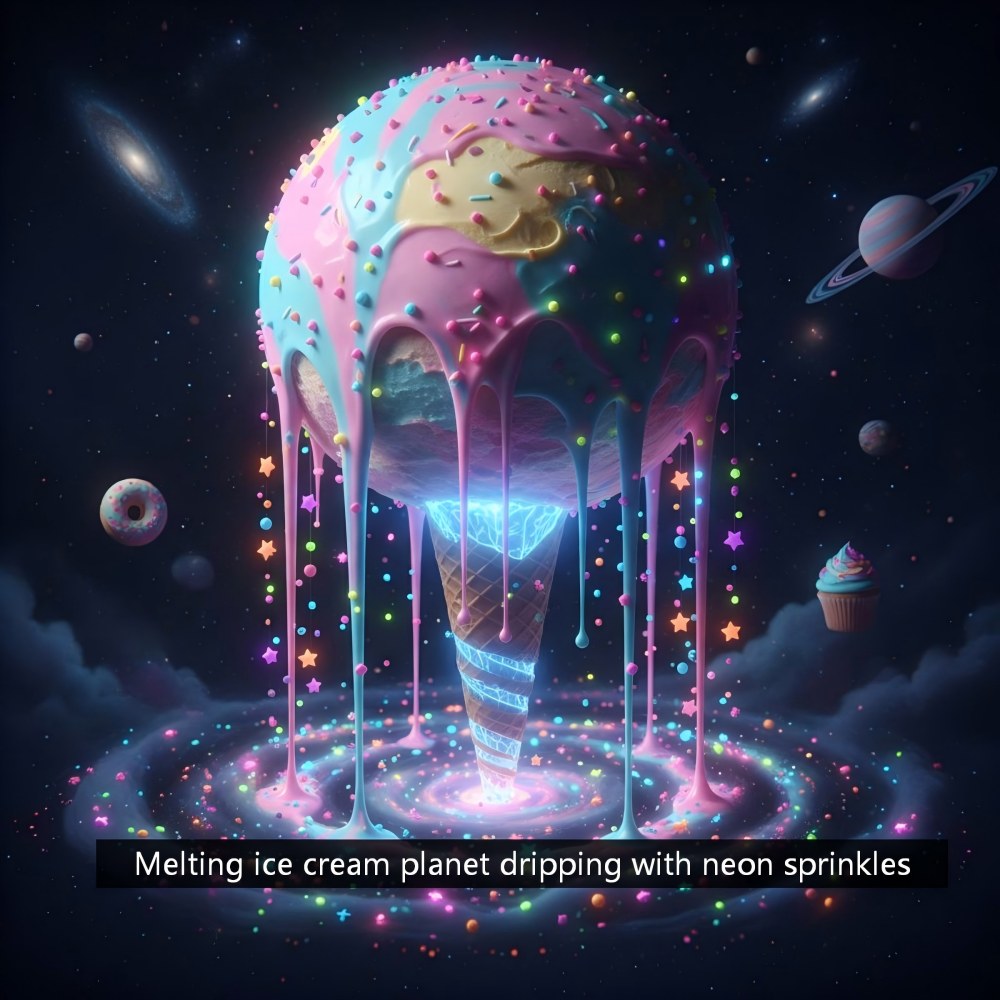
Text-to-image AI converts your written prompts into visual outputs. You type a description like "modern office interior with natural lighting," and the text-to-image generator processes those words through neural networks trained on millions of image-text pairs. The AI identifies objects, styles, colors, and spatial relationships from your prompt.
Most text-to-image AI models were trained at specific resolutions. Stable Diffusion 1.5 was trained on 512×512 pixel images, which is why it produces its sharpest results at that size. When you force these models to generate at higher resolutions, you often get repeated patterns, distorted proportions, or blurry regions.
Native high-resolution generation changes this limitation. Models that support 4096×4096 native output were trained on larger datasets at higher resolutions. This training allows the text-to-image generator to understand fine details, proper scaling, and realistic textures at sizes suitable for print. You avoid the quality loss that comes from upscaling smaller images.
Image to Image Transformation
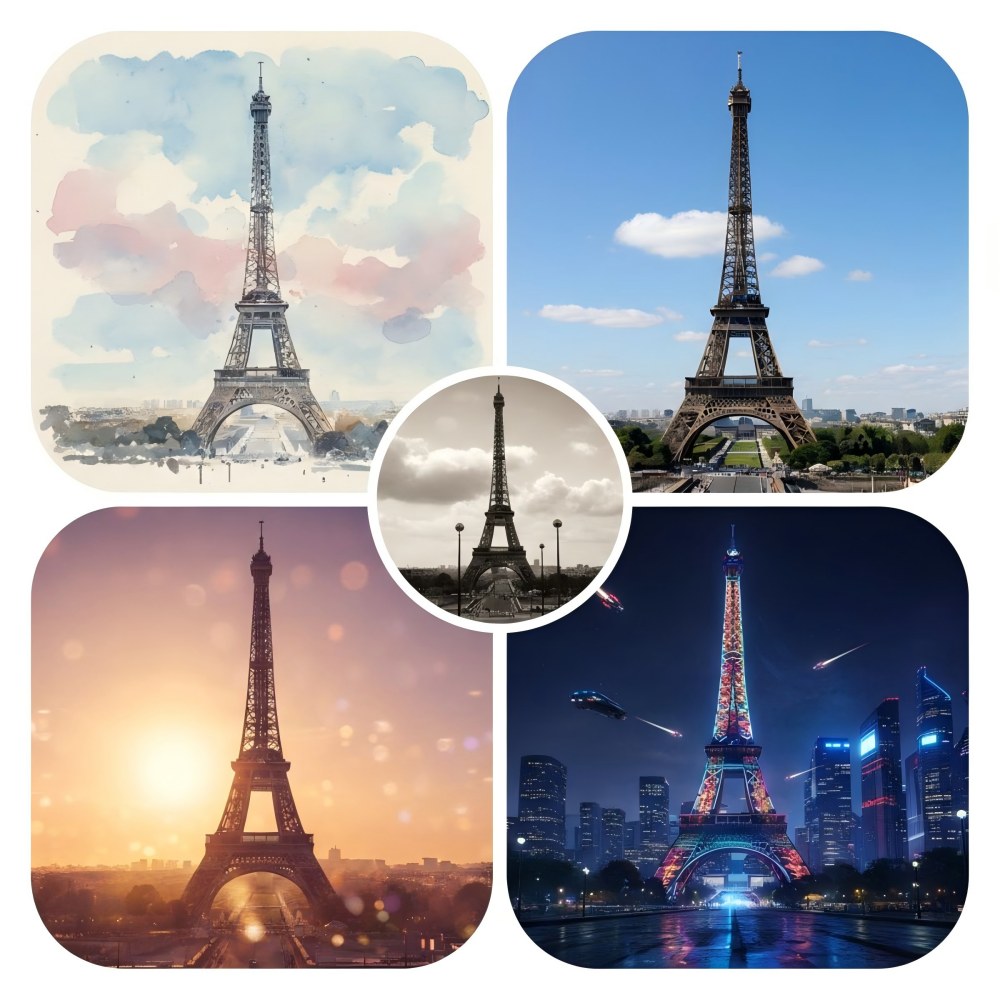
Image to image processing takes an existing picture as your starting point instead of text alone. You upload a reference image, then the AI uses its composition, color palette, or style as a foundation. This gives you more control over the final output than text prompts alone.
You can adjust style strength to determine how closely the AI follows your reference. Lower strength values let the AI interpret more freely, while higher values produce results that closely match your input. Image to image workflows work well for brand consistency, product variations, and visual concept development.
Reference images help solve common text-to-image problems. If your prompts keep producing unwanted elements, an image reference can guide the AI toward your intended result. You maintain creative direction while the AI handles technical rendering and detail generation.
Aspect Ratio and Resolution Controls
Aspect ratio settings determine the shape of your output—square, portrait, or landscape. Common presets include 1:1 for social posts, 16:9 for hero banners, and 4:5 for vertical formats. Custom dimensions let you match exact specifications for packaging, posters, or display screens.
Resolution controls fall into two categories: native generation size and upscaling options. Native 4096×4096 generation produces images with authentic detail and proper texture distribution. The AI calculates every pixel during the initial generation, which preserves realistic grain, edge sharpness, and micro-details.
AI upscaling applies after generation to increase pixel count. While upscaling can improve smaller images, it cannot add information that wasn't created during generation. Native high-resolution generation produces superior results for large-format applications like outdoor billboards, game textures, and print materials where viewers see the image up close.
| Feature | Native 4K Generation | Upscaled from Lower Resolution |
|---|---|---|
| Detail accuracy | Natural texture and grain | Interpolated, can look soft |
| Edge quality | Sharp, well-defined | May show artifacts |
| Best for | Print, billboards, close viewing | Web display, quick previews |
You should generate at your target resolution when final quality matters. Generate at lower resolutions only for speed during concept exploration, then switch to native high-resolution for final outputs.
For professionals who need precise control over output dimensions, platforms like PixExact offer native high-resolution generation with exact pixel dimension controls. Instead of being limited to aspect ratios, you can specify exact sizes like 1920×1080 or 2000×2000 pixels, ensuring your images match platform requirements without cropping or resizing. This approach combines the quality benefits of native generation with the flexibility to create assets ready for any professional application.
Artistic Styles and Customization Options
High-resolution AI image generators offer extensive artistic styles and customization tools that let you create images matching your specific vision. You can choose from dozens of preset styles, use reference images to maintain consistency across multiple generations, and process multiple images at once to speed up your workflow.
Supported Artistic Styles
Most high-resolution AI image generators support 100 to 300+ distinct artistic styles that range from photorealistic renders to stylized interpretations. You can generate images in watercolor, oil painting, digital painting, anime, concept art, cyberpunk, and traditional photography styles.
Style transformation works by applying learned artistic patterns to your text prompts or input images. When you select watercolor as your style, the AI applies techniques like color bleeding, paper texture, and brush stroke patterns that mimic traditional watercolor paintings. Digital painting styles add layered textures and visible brush work that resembles hand-painted digital art.
Concept art styles are particularly useful for game design and entertainment projects. These styles emphasize dramatic lighting, detailed environments, and character design elements that work well for pre-production visualization. You can also combine style parameters to create hybrid aesthetics that blend multiple artistic approaches.
The quality of style application varies between generators. Tools that support native 4096x4096 generation maintain style details better than those that upscale smaller images after generation.
Presets and Batch Generation
Presets save your style selections, aspect ratios, and generation parameters so you can reuse them across projects. You create a preset by configuring your preferred settings once, then apply it to new prompts without manual adjustment each time.
Batch generation lets you create multiple variations of the same prompt simultaneously. You can generate 4 to 16 images per batch depending on the platform and your subscription level. This feature is valuable when you need to explore different interpretations of a concept or produce multiple assets for a project.
Some generators offer batch processing with different styles applied to the same prompt. You input one text description and receive versions in watercolor, digital painting, photorealistic, and other styles you select. This speeds up your creative exploration and helps you identify which artistic approach works best for your needs.
Using Reference Images for Consistency
Reference images guide the AI to match specific visual elements across multiple generations. You upload an image that contains colors, composition, or style elements you want to replicate, and the generator uses it as a template for new creations.
This feature maintains visual consistency when you need multiple images for a cohesive project. If you're creating game textures or marketing materials, reference images ensure that new generations match your established aesthetic. The AI analyzes color palettes, lighting conditions, and structural elements from your reference to apply them to new prompts.
You can control how strongly the reference image influences the output. Higher influence settings create images that closely match your reference, while lower settings use it as loose inspiration. Some platforms let you use multiple reference images simultaneously to combine different visual characteristics into a single generation.
Image Upscaling and Enhancement Tools
AI upscaling technology uses neural networks to add missing detail when increasing image resolution, while enhancement tools remove compression artifacts and sharpen blurry photos. These solutions bridge the gap between standard AI outputs and professional print requirements.
Super Resolution and 4K Outputs
Super resolution technology reconstructs high-resolution images from lower-resolution sources by predicting and generating new pixels based on learned patterns. When you use an AI image upscaler with super resolution, the algorithm analyzes textures, edges, and patterns to create detail that wasn't present in the original image.
Most super resolution tools can scale images up to 4x their original size. This means a 1024x1024 image becomes 4096x4096, reaching true 4K resolution suitable for large format printing and professional applications.
The quality difference between super resolution and basic interpolation is significant. Traditional upscaling simply stretches existing pixels, which creates blurry results. Super resolution fills in realistic details by understanding what should exist at higher resolutions based on training data from millions of image pairs.
Image Upscalers and Photo Enhancers
AI image upscalers use deep learning models trained on high and low-resolution image pairs to enhance your photos. Popular models include Real-ESRGAN, REMACRI, and General Photo, each optimized for different image types.
Free upscaling options:
- Upscayl offers offline processing with batch support
- ImgUpscaler provides 4x upscaling through your browser
- Upscale.media requires no sign-up for quick results
Professional tools:
- Topaz Gigapixel handles up to 16x upscaling for photographers
- Freepik offers Classic and Magnific models with custom presets
- Let's Enhance includes lighting and tone correction
Photo enhancement goes beyond resolution increases. These tools sharpen details, improve color accuracy, and restore texture in portraits, landscapes, and product photos. You can process images locally on your computer or use cloud services that complete upscaling in seconds.
Removing JPEG Artifacts and Noise
JPEG compression creates blocky artifacts and color banding that become more visible when you upscale images. AI-powered photo enhancers detect and remove these compression patterns while preserving authentic image details.
Modern upscaling algorithms separate compression noise from actual image content. The neural networks identify repetitive block patterns typical of JPEG artifacts and reconstruct those areas with smooth, natural textures. This process works differently than simple blur filters, which would remove both artifacts and legitimate detail.
You'll see the most improvement in images that have been heavily compressed or saved multiple times. The AI analyzes surrounding pixels to predict what the original uncompressed detail should look like, then replaces degraded sections with enhanced versions that match the rest of your image.
Image Editing and Post-Processing Features
Modern AI image generators include powerful editing capabilities that let you refine and modify your creations without starting from scratch. These tools handle everything from targeted retouching to format conversion while maintaining the high resolution quality of your original generation.
AI Image Editing Tools
AI photo editing tools work directly within image generation platforms to modify specific elements of your images. You can use simple text prompts to change colors, add objects, or remove unwanted elements from your high-resolution creations. Tools like Flux Context let you make targeted edits in 3-5 seconds without affecting other parts of your image.
Common AI editing capabilities include:
- Object addition and removal through text commands
- Style transfer that converts images to different artistic styles
- Background replacement while preserving subject details
- Color and lighting adjustments with prompt-based controls
- Text replacement for signs, labels, and typography elements
When you edit AI-generated images, the system maintains your original resolution settings. A 4096x4096 pixel image stays at full resolution through multiple editing iterations. This differs from traditional photo editing software where repeated saves can degrade quality.
Inpainting and Retouching Techniques
Inpainting fills in or replaces specific areas of your image based on surrounding context. You select a region and describe what should appear there, and the AI generates new content that blends seamlessly with the existing image. This technique works particularly well for removing objects, changing facial features, or modifying small details in large format images.
AI photo editing tools use flow-matching models to understand image context. When you retouch a portrait at 4096x4096 resolution, the system preserves skin texture and lighting consistency better than traditional clone stamp tools. The AI analyzes thousands of pixels around your edit to generate realistic results.
Best practices for inpainting include:
- Make one specific change per prompt instead of multiple edits
- Use descriptive language like "remove the person in the background"
- Specify what should remain unchanged to prevent unwanted alterations
- Work iteratively on complex edits rather than attempting everything at once
No Watermark and Output Formats
High-resolution AI generators typically output images in PNG or JPEG formats without watermarks. PNG files preserve every pixel of detail in your 4096x4096 generation, making them ideal for large format printing and billboards. JPEG files offer smaller file sizes while maintaining visual quality for most applications.
You can download your images immediately after generation with no branding or logos embedded. This matters for commercial work where watermarks would interfere with your final product. Native 4096x4096 generation produces clean files ready for professional use without additional processing.
Some platforms limit resolution or add watermarks on free tiers, but professional tools provide full-resolution access. When you generate images at maximum resolution, you get complete control over the final output format and quality settings. Your 4096x4096 pixel image contains 16.7 million pixels of detail regardless of which format you choose for download.
Accessibility, Speed, and User Experience
Many high resolution AI image generators now offer free access points and fast generation times, making professional-quality visuals available to users without technical expertise or significant financial investment. Interface design and processing speed play major roles in whether these tools meet practical needs.
Free AI Image Generators and Plans
Multiple platforms provide free AI image generator options that support high-resolution output. Stable Diffusion offers completely free access with unlimited generations at various resolutions. PixmindAI operates without registration requirements and supports multiple styles including realistic and anime options.
NightCafe AI starts at $4.79 monthly but includes a free plan with limited credits. Playground AI offers free access before requiring $9-$13 monthly subscriptions. Monica.im provides a 14-day trial period before charging $8.30 monthly.
Free plan limitations typically include:
- Reduced monthly generation credits
- Lower maximum resolution caps
- Watermarked outputs
- Limited style options
- No commercial usage rights
Most premium plans range from $7 to $350 monthly depending on resolution capabilities and feature sets. Adobe Firefly charges $9.99 monthly for 30,000+ user seats, while Akool ranges from $21-$350 for 4K resolution and advanced face-swapping tools.
Online AI Image Generator Interfaces
Browser-based platforms eliminate software installation requirements and provide immediate access to generation tools. These online AI image generators work across devices including desktops, tablets, and smartphones.
Story321 and PixmindAI both operate entirely through web browsers with simple text-to-image interfaces. You type descriptions and receive 4K images within seconds. Runway supports both web and mobile apps with collaborative features for up to 10 team members.
Most platforms now include drag-and-drop editors, real-time previews, and bulk generation options. Adobe Firefly supports 21 languages while Monica.im works in over 120 languages. Cloud storage ranges from 50GB to 500GB depending on your subscription tier.
Key interface features include:
- Text prompt boxes with suggested keywords
- Style preset galleries
- Resolution selectors (HD, 4K, 8K options)
- Batch processing tools
- Direct export to industry formats
Fast and Lightning-Fast Generation
Generation speed separates practical tools from experimental ones. New hybrid autoregressive transformer technology runs approximately nine times faster than standard diffusion models while maintaining quality. This approach captures overall composition quickly then refines details through smaller diffusion processes.
Imagine AI Art generates 4K and 8K images in seconds rather than minutes. Akool processes face swaps and realistic avatars at fast speeds with 4K output. Most modern platforms complete single images in 5-15 seconds for standard resolutions.
Speed factors that affect your generation time:
- Base model architecture (diffusion vs. hybrid systems)
- Selected resolution (512x512 generates faster than 4096x4096)
- Server load during peak usage hours
- Complexity of your text prompts
- Number of refinement iterations
Lightning-fast generation matters most for iterative workflows where you test multiple variations. Platforms like Runway allocate 125-2250 GPU credits monthly, with faster models consuming more credits per image. Free plans often use slower processing queues while paid subscribers access priority generation servers.
Integration and Advanced Usage
API access enables direct integration of high-resolution generation into existing platforms, while batch processing handles multiple images at scale. These technical capabilities turn standalone tools into production-ready systems for commercial workflows.
API Access and Automation
APIs provide programmatic control over resolution parameters, letting you specify exact pixel dimensions up to 4096x4096 in your requests. Most platforms like Stability AI and Depositphotos Creative Suite API offer REST endpoints where you pass resolution values alongside your text prompts.
Authentication typically uses API keys or OAuth tokens to secure your requests. You can automate preset configurations that define resolution, aspect ratio, and quality settings for different use cases. For example, you might create a preset for billboard content at 4096x4096 and another for web graphics at 2048x2048.
Rate limits vary by provider, so you need to check documentation for concurrent request allowances. Some APIs return job IDs for long-running generation tasks, which you poll until the high-resolution output completes. This asynchronous approach prevents timeout issues when generating native 4K images.
Workflow Integration and Batch Processing
Batch generation processes multiple prompts simultaneously, which proves essential for large-format printing projects or game texture libraries. You submit arrays of prompts with consistent resolution settings, and the system queues each request for parallel processing.
Integration with design tools like Adobe Creative Suite or Figma happens through plugins or webhook connections. Your team can trigger batch generation directly from their workspace, pulling completed assets into layouts without manual downloads.
Common batch processing parameters:
- Resolution lock: Forces all outputs to match specified dimensions
- Naming conventions: Auto-labels files based on prompt keywords
- Format selection: Exports as PNG, TIFF, or WebP for different applications
Webhooks notify your system when batches complete, enabling automated quality checks before files move to production. This integration reduces manual oversight and accelerates delivery for time-sensitive campaigns requiring native high-resolution outputs.
Frequently Asked Questions
AI image generators produce high-resolution outputs through various technical approaches, from native generation at resolutions like 4096x4096 to upscaling methods that enhance smaller images. Understanding system requirements, processing capabilities, and legal considerations helps you make informed decisions about which tools and methods suit your needs.
What are the system requirements for operating an AI-based high-resolution image generator?
You need a computer with at least 8GB of RAM to run basic AI image generators. For high-resolution output, 16GB or more is recommended.
Most generators require a graphics card with at least 6GB of VRAM. Higher resolutions like 2048x2048 or 4096x4096 need 12GB or more VRAM for smooth operation.
Your processor should be a modern multi-core CPU. Internet-based generators have minimal requirements since processing happens on remote servers.
How does an AI image generator upscale images while maintaining quality?
AI upscaling uses trained models to predict and add missing details when enlarging images. The system analyzes patterns in the original image and fills in pixels based on what it learned from millions of high-resolution examples.
Two main approaches exist: post-processing upscaling and native generation. Post-processing takes a smaller image and enlarges it afterward. Native generation creates images at the target resolution from the start, which preserves more realistic details and textures.
Native generation at 4096x4096 pixels produces sharper results than upscaling a 512x512 image. The AI has more information to work with during the initial creation process.
What are the common limitations when generating high-resolution images with AI?
Most AI models like Stable Diffusion 1.5 natively support only 512x512 or 1024x1024 resolution. These models were trained on images at these specific dimensions.
When you force these models to generate larger images, they often produce distorted or blurry results. The AI struggles because it wasn't designed to handle the increased complexity.
Processing time increases significantly with higher resolutions. A 4096x4096 image takes much longer to generate than a 512x512 one.
Memory requirements grow exponentially at higher resolutions. Your system may run out of VRAM and crash during generation.
Can AI image generators produce high-resolution images from low-resolution inputs?
Yes, AI generators can enhance low-resolution inputs through upscaling technology. The AI analyzes the small image and reconstructs it at a larger size with added details.
The quality of results depends on the original image quality. Images with more detail and less compression produce better upscaled versions.
You should understand that upscaling adds predicted information rather than recovering original details. The AI makes educated guesses about what details should look like based on its training.
Native high-resolution generation typically produces better results than upscaling. Starting with a text prompt at 4096x4096 resolution creates more authentic textures than enlarging a 512x512 image.
What is the average processing time for converting images to high resolution using AI?
Processing time varies based on the target resolution and your hardware. A 512x512 image typically generates in 5-15 seconds on a mid-range GPU.
Images at 2048x2048 resolution take 30-90 seconds. Native 4096x4096 generation can take 2-5 minutes depending on your system.
Cloud-based generators may process faster due to powerful server hardware. However, you might wait in a queue during peak usage times.
Upscaling existing images is usually faster than native generation. Most upscaling tools process images in 10-30 seconds regardless of final size.
How do intellectual property rights apply to images created with high-resolution AI generators?
Your rights depend on the specific tool's terms of service. Some generators grant you full commercial rights to your creations while others restrict usage.
Most free tools allow personal use but may limit commercial applications. Paid services typically offer broader licensing rights.
You should check whether the generator was trained on copyrighted material. Some AI models face legal questions about their training data sources.
Images you create are generally considered your work if you wrote the prompt. The exact legal status continues to evolve as courts examine AI-generated content.