LinkedIn Banner Size Overview
LinkedIn banners use specific dimensions to display properly across devices. Personal profiles need 1584 x 396 pixels, while company pages require 1128 x 191 pixels.
PixExact helps you create LinkedIn banners at exact pixel dimensions, such as 1584×396 for profiles and 1128×191 for company pages, without resizing or cropping after generation.
What Is a LinkedIn Banner?
A LinkedIn banner is the background image that appears at the top of your profile or company page. It sits behind your profile photo and creates your first visual impression on the platform.
The banner stretches across the full width of your page header. On a personal profile, it displays above your name and headline.
On a company page, it appears above your logo and company information. You can use your banner to show your brand, share your personality, or highlight what you do.
The banner works together with your profile photo to create a complete visual identity.
Standard LinkedIn Banner Dimensions
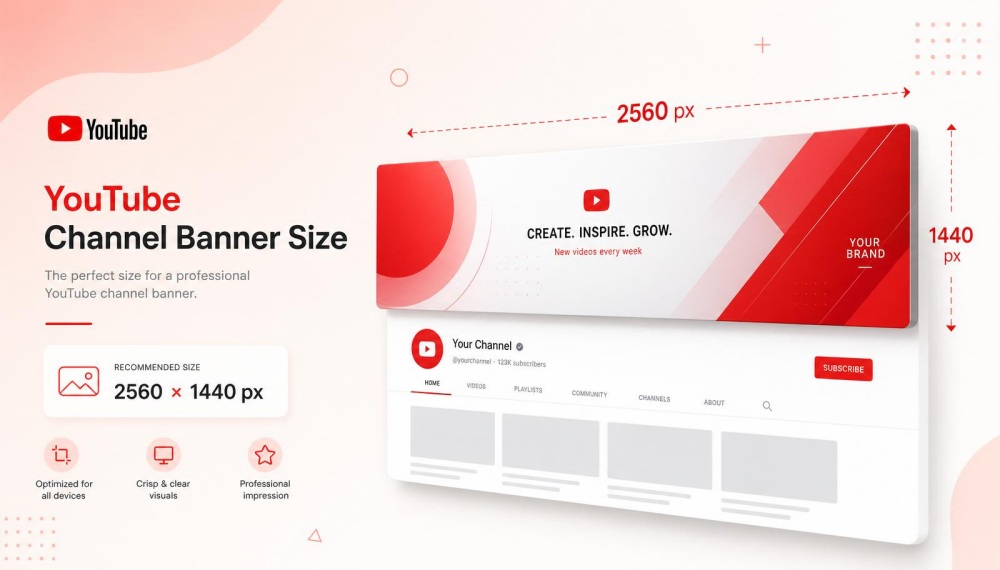
The recommended LinkedIn banner size for personal profiles is 1584 x 396 pixels. This creates a 4:1 aspect ratio that works well on desktop and mobile devices.
Company page banners use different dimensions of 1128 x 191 pixels. This narrower format fits the company header layout on LinkedIn.
| Banner Type | Dimensions | Aspect Ratio | Action / Generate |
|---|---|---|---|
| Personal Profile | 1584 x 396 pixels | 4:1 | Generate 1584 x 396 LinkedIn Banner with PixExact |
| Company Page | 1128 x 191 pixels | ~6:1 | Generate 1128 x 191 LinkedIn Banner with PixExact |
Keep important elements like text or your logo within the safe zone. The safe area sits in the center of your banner where profile photos and interface buttons won't cover your content.
Recommended Image Formats and Resolutions
LinkedIn accepts JPG and PNG file formats for banner images. PNG works better when you have graphics, text overlays, or your logo image because it keeps sharper edges.
JPG files work well for photos with gradients or detailed backgrounds. Your maximum file size is 8MB for personal profiles.
Use a high-quality image with at least 72 DPI resolution. This keeps your LinkedIn cover image clear after the platform compresses it.
Test your banner on both desktop and mobile devices before publishing to make sure it displays correctly across different screen sizes.
Personal Profile Banner Specifications
The personal profile banner displays at the top of your LinkedIn profile and uses specific dimensions to maintain clarity across devices. Your LinkedIn background image needs proper sizing and positioning to avoid cropping issues that can hide important visual elements.
Personal Banner Dimensions and Aspect Ratio
Your LinkedIn profile banner should measure 1584 x 396 pixels. This size follows a 4:1 aspect ratio that LinkedIn uses for personal profiles.
The 1584 pixel width provides enough space for detailed graphics or text. The 396 pixels height gives you vertical room without overwhelming the profile layout.
Use JPG or PNG format for your upload. Keep your file size under 8MB to prevent upload errors or quality loss from compression.
A high-quality image at these exact dimensions displays sharp on both desktop and mobile screens. Smaller images get stretched and appear blurry, while larger files may get compressed by LinkedIn.
| Specification | Value |
|---|---|
| Dimensions | 1584 x 396 pixels |
| Aspect Ratio | 4:1 |
| File Format | JPG or PNG |
| Maximum File Size | 8MB |
Safe Zones and Cropping Considerations
LinkedIn crops your banner differently depending on screen size. Your profile photo overlaps the banner in the lower left area, so avoid placing key elements there.
Keep text, logos, and important graphics within the safe zone. This means centering your main content horizontally and staying away from all edges by at least 100 pixels.
Mobile devices show less of the left and right sides of your banner. What displays perfectly on desktop may get cut off on phones.
Your LinkedIn profile picture size is 400 x 400 pixels and sits in the bottom left corner. Plan your banner design around this placement to prevent overlap with your photo or the life tab icon.
Best Practices for Clarity Across Devices
Preview your LinkedIn cover photo on multiple screen sizes before publishing. Check how it appears on desktop, tablet, and mobile to catch cropping problems early.
Use templates from Canva or design tools that include safe zone markers. These guides show you exactly where to place content for consistent display.
Choose images with good contrast and avoid tiny text that becomes unreadable on small screens. Bold, simple designs work better than complex layouts with lots of detail.
Test your banner after uploading. View your profile while logged out or on different devices to see the actual display quality and positioning.
Company Page Banner Guidelines
LinkedIn company page banners require different dimensions than personal profiles. Understanding these specifications helps you create a professional presence that displays correctly on all devices.
Company Banner Size and Placement
The LinkedIn company page banner size is 1536 × 260 pixels, though some sources recommend 1128 x 191 pixels for optimal display. Your file should stay under 8 MB for PNG format or 3 MB for JPEG.
Company page banners appear at the top of your page and sit behind your company logo. The banner displays differently on desktop and mobile devices, so you need to check both views before publishing.
Place important text and graphics in the center third of your image. This safe zone prevents cropping issues when viewers access your page from different screen sizes.
Keep your maximum file size within LinkedIn's limits to ensure fast loading. Upload a test version first to preview how your banner looks across mobile and desktop before making it live.
Brand Consistency and Visual Strategy
Your LinkedIn company page banner should match your brand colors and messaging across all platforms. Use high-quality images that reflect your business and avoid generic stock photos.
Design platforms like PixExact or Canva offer pre-sized LinkedIn templates that update as the platform changes. These tools help you create visually appealing banners without starting from scratch.
Choose imagery that resonates with your target audience. Professional photography works well for corporate sectors, while tech companies may prefer modern graphics.
LinkedIn now offers slideshow banners for company pages, letting you rotate up to five images. Each slide follows the same size requirements and can showcase different services, client logos, or company culture.
Company Logo and Profile Image Requirements
Your LinkedIn company logo size is 300 x 300 pixels minimum, displayed as a square image at 400 x 400 pixels maximum. This logo image appears in front of your banner and should not compete with your cover photo design.
If your full logo already shows in your profile photo, focus your banner on brand messaging or a tagline instead. When you do include your logo on the banner itself, position it away from where the profile photo overlaps.
Your company logo displays at various sizes across LinkedIn, from page headers to post thumbnails. Use a simple design that remains clear even at smaller dimensions.
Keep text readable by avoiding placement too close to edges where your logo sits. The space where your profile photo appears will cover part of your banner, so design around this overlap zone.
LinkedIn Group and Event Banner Dimensions
Groups and events on LinkedIn require specific banner dimensions to display properly and attract members or attendees. The LinkedIn event page uses a 1600 x 900 pixel banner, while group banners need different measurements to fit their layout.
Group Banner Size and Logo
Your LinkedIn group banner should be 1536 x 768 pixels to display correctly across all devices. This dimension ensures your group's visual identity shows up without getting cropped on desktop and mobile screens.
The group logo requires 300 x 300 pixels in a square format. This logo appears next to your group name and helps members quickly identify your community in their feed.
You should use high-quality images for both the banner and logo. The file size should stay under 8 MB to upload smoothly.
PNG files work best for logos with transparent backgrounds, while JPEG works well for photo-based banners. Keep important text and graphics in the center of your banner to avoid cropping.
Event Banner Optimal Sizes
The LinkedIn event banner size should be 1600 x 900 pixels with a 16:9 aspect ratio. This dimension displays your event promotional image clearly on event page and in feeds.
Your event logo needs to be 300 x 300 pixels in a square format. This appears alongside your event details and helps with brand recognition.
The banner image should communicate key event information like the topic, date, and speakers. You have more space to work with compared to other LinkedIn banners, so you can include more visual elements.
Use bold text that's readable at smaller sizes since members will see your event banner on mobile devices. Avoid placing critical information near the edges where it might get cropped on certain displays.
Visual Tips for Groups and Events
Your group and event visuals should align with your brand colors and style. Consistent branding helps build trust and makes your content more recognizable across LinkedIn.
Choose images that represent your group's purpose or event theme. Photos of people engaging in relevant activities perform better than generic stock images.
Make sure faces and important details stay within the safe zone. Text overlays should use readable fonts sized appropriately for the banner dimensions.
Contrast between text and background ensures your message stays clear on both desktop and mobile screens. Test your banners by viewing them on different devices before publishing.
The recommended dimensions ensure optimal display, but checking across platforms confirms your design works everywhere.
LinkedIn Post and Content Image Sizes
LinkedIn posts support multiple image formats with different dimensions depending on the content type. Standard feed posts work best at 1200 x 627 pixels, while carousel posts and article headers require specific sizes to display properly across devices.
Post Image Dimensions and Formats
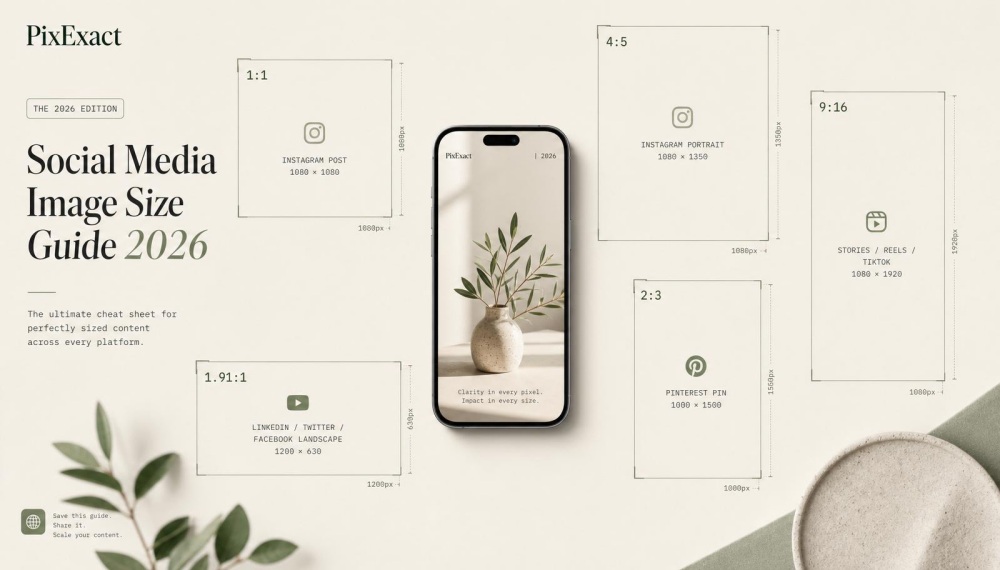
The ideal LinkedIn post image size for standard feed posts is 1200 x 627 pixels. This dimension maintains a 1.91:1 aspect ratio that works well for both desktop and mobile viewing.
Square images at 1080 x 1080 pixels also perform well on LinkedIn. They take up more vertical space in the feed and work effectively on mobile devices.
For vertical posts, you can use 1080 x 1920 pixels, though LinkedIn will crop these to fit its feed layout. LinkedIn accepts PNG, JPG, and GIF formats with a maximum file size of 5 MB per image.
The platform compresses uploaded images, so starting with high-quality visuals helps maintain clarity after compression. Avoid placing important text or logos near the edges where cropping may occur.
Carousel and Article Header Image Specifications
LinkedIn carousel posts require 1080 x 1080 pixels for each slide. All slides in a single carousel should use the same dimensions to maintain visual consistency as users swipe through.
When you publish an article on LinkedIn, you need two separate images. The feature image appears in your audience's feed at 1200 x 644 pixels, while the banner image displays at the top of the article itself at 600 x 322 pixels.
Each carousel slide can include different content, but using square images ensures nothing gets cut off. LinkedIn allows up to 10 slides per carousel post, giving you space to tell a complete story or showcase multiple products.
Link Preview and Shared Content Visuals
When you share a link on LinkedIn, the platform automatically generates a preview image pulled from the website's metadata. The optimal link preview image size is 1200 x 627 pixels to ensure sharp display across all devices.
If you upload custom images with shared links, stick to the same 1200 x 627 pixel dimensions. This size prevents awkward cropping and maintains professional appearance in the feed.
LinkedIn recommends designing for mobile-first reach by using a 4:5 aspect ratio. Choose 1:1 for versatile feed posts and select 1.91:1 specifically for links and sponsored content.
Different aspect ratios serve different purposes depending on your content goals.
LinkedIn Ad Banner and Visual Specifications
LinkedIn ad banners require specific dimensions and formatting to display properly across desktop and mobile devices. Using the correct linkedin ad sizes helps your sponsored content appear sharp and professional in user feeds.
Recommended Ad Banner Sizes
The standard linkedin ad banner size is 1200 x 627 pixels. This dimension works for single-image sponsored content ads that appear in the LinkedIn feed.
Your file size should stay under 5MB for best results. Use JPG or PNG format to maintain image quality.
For carousel ads, each slide should measure 1080 x 1080 pixels. You can upload up to 10 slides per carousel post.
Dynamic ads use smaller banner dimensions at 100 x 100 pixels for the company logo. These ads appear as banners on the right side of user feeds.
Keep important text and logos centered within your banner. LinkedIn may crop edges on mobile devices, so leave space around key elements.
| Ad Type | Dimensions | File Format | Maximum File Size |
|---|---|---|---|
| Single Image Ad | 1200 x 627 px | JPG or PNG | 5MB |
| Carousel Slide | 1080 x 1080 px | JPG or PNG | 10MB per slide |
| Dynamic Ad Logo | 100 x 100 px | JPG or PNG | 2MB |
Aspect Ratios for Sponsored Content
LinkedIn supports multiple aspect ratios for sponsored content. The 16:9 aspect ratio works best for landscape images at 1200 x 627 pixels.
Square images use a 1:1 ratio at 1080 x 1080 pixels. This format takes up more vertical space in the feed and often gets better engagement.
For vertical sponsored content, use a 4:5 ratio with dimensions of 1080 x 1350 pixels. This format displays well on mobile devices where users scroll through feeds.
Test different ratios to see which performs better for your audience. LinkedIn automatically scales images to fit different screen sizes, but starting with the correct aspect ratio prevents distortion.
Guidelines for LinkedIn Ad Visuals
Your LinkedIn ad visuals should include minimal text. Images with less than 20% text coverage typically perform better and reach more users.
Use high-quality images that reflect your brand identity. Blurry or pixelated graphics hurt your professional image and reduce engagement.
Choose colors that stand out in the LinkedIn feed without clashing with the platform's blue and white interface. Bold, contrasting colors draw attention to your ad banner.
Avoid placing critical information near the edges. LinkedIn crops images differently on mobile versus desktop, so keep your logo and key messaging within a safe zone in the center third of the image.
Test your ad visuals on both desktop and mobile before launching your campaign. Preview how your banner looks at different sizes to ensure readability across all devices.
Design and Technical Optimization Tips
Proper file compression, color settings, and mobile-friendly layouts keep your LinkedIn banner sharp across all devices while avoiding pixelation, slow loading, and cropping errors.
Image Compression and File Size Limits
LinkedIn sets a maximum file size of 8MB for personal profile banners at 1584 x 396 pixels. Staying under this limit prevents upload errors and maintains image quality.
Use PNG format for banners with logos, text, or graphics that need sharp edges. JPG works better for photos with gradients or complex backgrounds.
Before uploading, compress your file using tools like TinyPNG or the export settings in Canva to reduce size without losing clarity. A high-quality image doesn't always mean the largest file size.
Test different compression levels to find the balance between file size and visual quality. If your banner looks blurry after upload, check that you're using the recommended dimensions and haven't over-compressed the file.
Color Profiles, Clarity, and Mobile-First Design
LinkedIn supports both RGB and sRGB color profiles for banner images. sRGB provides better color consistency across different screens and devices.
When designing in Canva or other tools, set your canvas to sRGB mode to ensure colors appear as intended. Save your final banner at 72 DPI or higher for desktop clarity.
Most viewers access LinkedIn from mobile devices, so preview your banner on a phone before publishing. Keep important elements like your logo or tagline centered within the safe zone.
Text near the edges may get cropped on smaller screens. Your profile photo covers part of the lower-left corner, so leave that area clear in your banner design.
Avoiding Common Banner Mistakes
Don't place text or logos too close to the edges where they might get cropped. The safe area sits roughly 200 pixels from each side for 1584-pixel-wide banners.
Avoid using low-resolution images that appear pixelated when stretched to full size. Busy patterns or excessive text make your banner hard to read and look unprofessional.
Your banner should complement your profile photo, not compete with it. Test your banner on both desktop and mobile devices before finalizing.
What looks centered on your computer may shift on a phone. Use LinkedIn marketing best practices to ensure your visuals align with your professional brand across all LinkedIn visuals.
Frequently Asked Questions
LinkedIn banners need specific dimensions to display correctly across devices. The standard size for personal profiles is 1584 x 396 pixels, while company pages use different measurements.
What are the dimensions for a LinkedIn banner in pixels?
The LinkedIn banner size for personal profiles is 1584 x 396 pixels. This size works well on both desktop and mobile screens.
For company pages, you should use 1128 x 191 pixels. This narrower layout fits the company header area properly.
The maximum file size is 8MB for personal banners. You should save your banner as either JPG or PNG format.
How does the LinkedIn banner size adjust for mobile viewing?
Your LinkedIn banner displays differently on mobile devices compared to desktop screens. The full 1584 x 396 pixels appears on desktop, but mobile crops the sides.
You need to keep important elements like text or logos centered. This prevents them from getting cut off on smaller screens.
Preview your banner on both desktop and mobile before uploading. This helps you check that key details stay visible across all devices.
What is the correct LinkedIn banner size ratio?
The aspect ratio for personal LinkedIn profiles is 4:1. This ratio helps your banner scale properly across different screen sizes.
Company page banners use approximately a 6:1 ratio. The wider format fits the company header layout.
Using the correct aspect ratio prevents stretching or unwanted cropping. Your banner will maintain its quality when LinkedIn displays it.
Could you specify the LinkedIn banner size in centimeters?
A banner measuring 1584 x 396 pixels converts to approximately 42 x 10.5 centimeters at 96 DPI. This measurement can vary based on your screen resolution.
Physical dimensions matter less than pixel dimensions for digital images. LinkedIn reads files in pixels, not centimeters.
Focus on the pixel measurements when designing your banner. The 1584 x 396 pixels standard ensures proper display regardless of physical size.
How can I ensure my LinkedIn banner fits properly when uploaded?
Keep your design elements within the safe zone to avoid cropping. Leave space around the edges where your profile photo and interface elements appear.
Upload your banner at exactly 1584 x 396 pixels for personal profiles. Using the recommended dimensions prevents LinkedIn from stretching or compressing your image.
Check that your file is under 8MB and saved as JPG or PNG. Test how your banner looks after upload on both mobile and desktop views.
What dimensions should I use for a LinkedIn banner when designing in Canva?
Set your Canva canvas to 1584 x 396 pixels for personal profile banners. This matches LinkedIn's exact specifications.
Canva offers LinkedIn banner templates with the correct dimensions already set. You can customize these templates while maintaining the proper size.
Export your final design as a high-quality PNG or JPG file. Keep the file under 8MB to meet LinkedIn's upload requirements.