What Is Kling AI Motion Control?
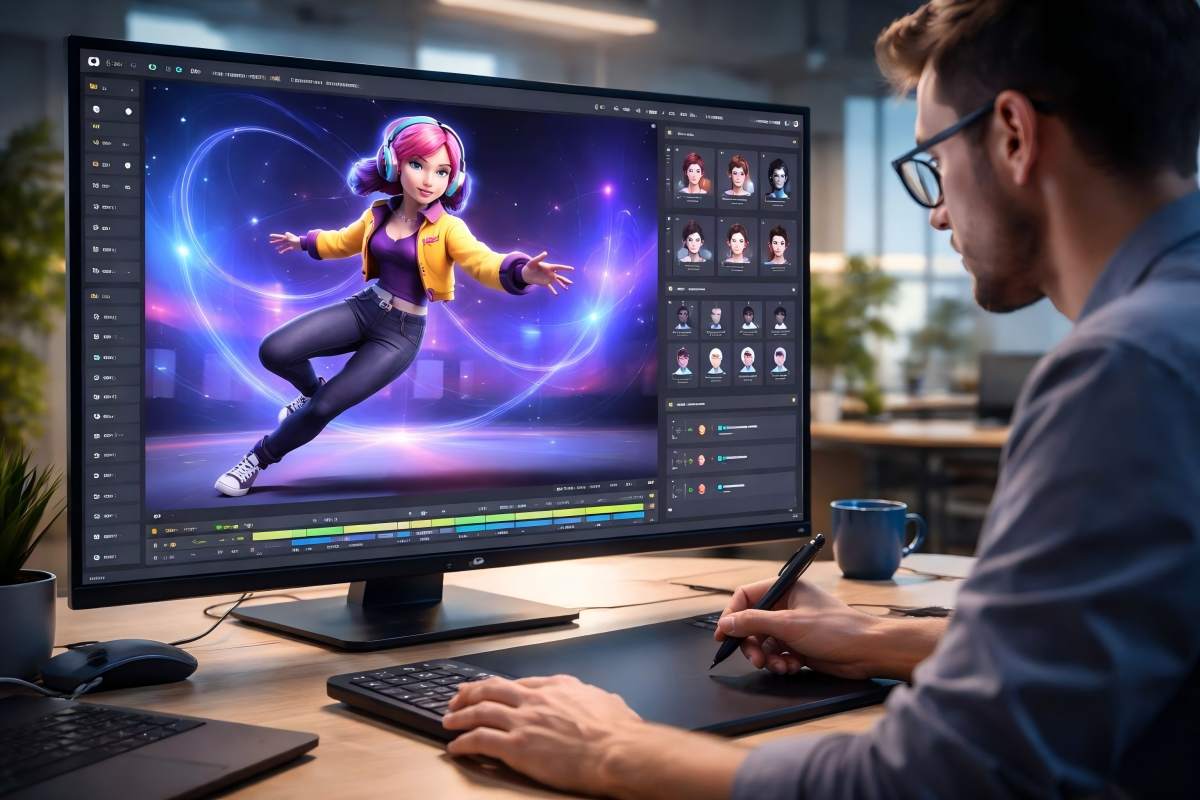
Kling AI Motion Control analyzes movement from a reference video and transfers it to your static image. This creates animated videos where you control exactly how your character moves and acts. You can try it on PixExact, upload your image and a reference video to create your first motion-controlled clip in minutes.
Definition of Motion Control AI
Motion control AI is technology that extracts movement patterns from one video and applies them to a different image or character. Unlike standard image-to-video tools that guess how your subject should move based on text prompts, motion control gives you frame-by-frame precision.
You provide two inputs: a static image of your character and a reference video showing the desired action. The AI doesn't invent movement; it copies the exact motion, timing, and physical dynamics from your reference footage.
This approach eliminates the unpredictability common in AI video generation. Your output matches your reference, making results repeatable and production-ready for social media, marketing campaigns, and professional animation work. Platforms like PixExact give you direct access to Kling Motion Control in the browser—no software installation required.
Core Principles of Kling Motion Control
Kling motion control operates on motion transfer rather than motion prediction. The system separates appearance from action, treating them as independent elements that combine during generation.
Your reference image defines who appears in the video. It preserves your character's face, clothing, style, and identity throughout the animation.
Your reference video defines what happens in the scene. The Kling motion control AI extracts body positions, facial expressions, hand gestures, weight distribution, and movement tempo from this footage.
The technology understands human body physics and maintains anatomical accuracy. When you use a reference video of someone jumping or dancing, your generated character exhibits realistic inertia and balance.
Movements appear grounded and physically plausible, not distorted or obviously AI-generated.
Overview of Motion Transfer Technology
Motion extraction happens through frame-by-frame analysis of your reference video. Kling motion control AI maps the skeletal structure, facial landmarks, and camera perspective from each frame.
This extracted motion data then drives the animation of your static character. The system preserves the original timing, speed, and rhythm of movements while adapting them to your character's appearance.
Key capabilities include:
- Full-body motion transfer for dance, sports, and action sequences
- Precise hand and finger movements for product demonstrations
- Facial expression matching for emotional content
- Camera angle and perspective control options
You can modify the background environment through text descriptions while keeping the character motion intact. Your subject performs the same action but in a completely different setting.
Try It on PixExact
Want to see motion transfer in action? On PixExact Motion Control AI, you can upload a static image and a 3–30 second reference video to generate your first motion-controlled clip. For example, use a reference video of a woman walking with headphones, listening to music while walking with swaying and spinning movements—the AI applies the exact movements to your character while preserving identity. Export as MP4 without watermarks on paid plans, ready for TikTok or Instagram.
Kling Motion Control Key Features
Kling Motion Control uses advanced AI technology to extract movements from reference videos and apply them to your static images with precision. The system captures full-body motion, maintains character identity throughout the animation, and produces realistic results that preserve natural physics.
Precise Motion Extraction
Kling Motion Control analyzes your reference videos to capture complete movement sequences. The AI processes videos between 3 and 30 seconds long, identifying body motion patterns, hand gestures, and facial expressions frame by frame.
The system handles various motion types including walking, dancing, martial arts, and complex choreography. You can upload your own reference video or select from the built-in motion library that contains pre-tested movements.
When you provide a reference video, the motion control features extract specific details like posture shift, limb positioning, and timing. The 3D Spacetime Joint Attention technology maps motion paths in three dimensions, which helps maintain accurate body dynamics throughout the generated video.
The extraction process works best with clear, well-lit videos where the subject remains visible. Dance videos and action sequences produce the most reliable results because they contain distinct, trackable movements.
Character Animation Capabilities
Your character animation starts with a single static image. You upload your photo, and the AI applies the extracted motion while keeping your character recognizable.
The motion brush technology gives you control over how movements transfer to your image. You can adjust motion strength to balance between strict reference matching and creative interpretation.
This flexibility lets you create everything from precise dance recreations to looser, more stylized animations. Complex choreography transfers accurately because the system tracks full-body coordination.
Hand gestures remain detailed and precise, which matters for sign language, pointing, or intricate finger movements. Facial expressions sync with body movements to create natural-looking performances.
You can add text prompts to modify the background, lighting, or atmosphere without changing the transferred motion. This means your character performs the same dance or action while you customize the visual style around them.
The character direction can match either the reference video orientation or your source image.
Identity Stability and Realism
Identity stability keeps your character's appearance consistent throughout the video. Your subject's facial features, body proportions, and visual characteristics remain unchanged from start to finish.
The Kling 3.0 Omni One architecture uses Chain-of-Thought reasoning to preserve real-world physics during motion transfer. Gravity, balance, deformation, and inertia all behave naturally in your generated videos.
When your character jumps, their clothes move appropriately. When they spin, momentum carries through realistically.
Body dynamics stay physically accurate even during rapid movements or direction changes. The AI understands how weight shifts during motion and applies these principles to your character animation.
You can generate videos up to 30 seconds long at 720p or 1080p resolution. The system maintains quality and identity stability across the full duration.
Motion Control Workflow
The motion control workflow involves three main steps: uploading your source materials, adjusting how your character appears in the scene, and fine-tuning the output with descriptive text. Each step builds on the previous one to create polished AI video from a single image.
Uploading Reference Videos and Images
You need two key files to start your workflow. First, upload your reference video that contains the motion you want to copy.
This video should be between 3 and 30 seconds long and show clear, full-body movements like dancing, walking, or gestures. Next, upload your character image.
This is the static photo that will perform the actions from your reference video. The AI video generator extracts the motion path from your reference video and applies it to your character image.
Your reference video quality matters. Use footage with good lighting and a clear view of the subject.
Avoid videos with camera shake or objects blocking the person. The better your source material, the smoother your final AI video will look.
Configuring Character Orientation and Camera Movement
After you upload your files, you can adjust how your character faces the camera. The system lets you set the starting orientation so your character matches the scene you envision.
This keeps your image-to-video generation looking natural. You can add camera movement to make your video more dynamic.
Choose from options like pan, zoom, or static shots. A slight pan can add energy to dance videos, while a static camera works better for subtle movements.
These settings give you control over the final presentation. You don't just copy motion—you direct how viewers see it.
Test different camera angles if your first result doesn't match your vision.
Using Text Prompts and Scene Refinement
Text prompts help the AI video generator understand the context of your scene. Describe the environment, lighting, and mood you want.
Keep prompts clear and specific, like "dancing in a neon-lit club" or "walking through a sunny park." Your prompts should complement the motion from your reference video, not contradict it.
If your reference shows energetic dancing, your text should describe an appropriate setting for that energy level. You can refine your results by adjusting prompts and regenerating.
The workflow lets you iterate quickly until you get the exact AI video you need for your project.
Generation Modes and Output Options

Kling AI Motion Control offers two video quality tiers and flexible export settings. You can choose between standard and professional rendering, control audio synchronization, and download files in multiple formats for different use cases.
Standard vs. Pro Video Modes
When you generate a video with Kling Motion Control, you select between two video modes that affect rendering quality and processing time. Standard mode delivers motion transfer at a lower computational cost.
This option works well for social media content, quick tests, and projects where speed matters more than maximum detail. Your videos will still maintain accurate motion tracking and character consistency.
Pro mode produces higher-fidelity output with enhanced texture rendering and cleaner details. Choose this when you need commercial-grade quality for client work, advertisements, or professional productions.
The pro setting takes longer to process but delivers noticeably sharper results with better handling of complex surfaces and lighting. Both modes support the same motion control features.
Your choice depends on your quality requirements and timeline.
Audio Handling and Lip Sync
Kling Motion Control gives you control over audio in your generated videos through the "keep audio" option. When you enable keep original sound, the system preserves the native audio from your reference video.
This works well when you want music timing or environmental sounds to match your motion exactly. The platform does not currently offer automatic lip sync generation.
If your project requires speech synchronization, you need to provide a reference video where the mouth movements already match your desired audio. The motion control will transfer those lip movements to your target image along with other body motions.
You can also generate videos without audio and add your own soundtrack during post-production.
Supported Formats and Duration
Kling Motion Control accepts JPG and PNG files for your target images. For reference videos, upload MP4 or MOV formats with clear visibility of the subject's movements.
Your output duration options are 10s or 30s depending on your subscription level and the complexity of your motion sequence. Shorter 10-second clips process faster and work well for social media loops.
The 30-second option gives you more room for complete dance routines or complex action sequences. After generation completes, use the generate & download button to save your video.
Files export as MP4 format, ready for immediate upload to TikTok, Instagram, or YouTube without additional conversion. You can download videos without watermarks on paid plans.
Try PixExact's Kling 3.0 Motion Control at to create your first viral dance video with flexible export options and no branding overlays.
Kling 2.6 and Kling 3.0: Innovations and Upgrades

Kling 2.6 introduced motion control to AI video creation, while Kling 3.0 brought major improvements to face consistency and occlusion handling. Each version offers distinct capabilities that match different creator needs.
Overview of Kling 2.6 Capabilities
Kling 2.6 brought motion control features that changed how you create AI videos. You can upload a reference video and map its movements onto a static image.
This lets you take a single photo and make it perform dance routines or complex actions. The Kling 2.6 motion control system works by analyzing the motion patterns in your reference video.
It then applies those movements to your character or subject. You get control over body positioning and movement flow that wasn't possible before.
Kling v2.6 handles basic character animation well. You can create short video clips with consistent movement patterns.
The system maintains your character's appearance through most standard motions. However, Kling 2.6 has limits.
When your character turns their head past 45 degrees, facial features sometimes shift. If a hand crosses in front of the face, you might see artifacts or distortion.
Background elements can flicker during fast movements.
Advancements in Kling 3.0
Kling 3.0 fixes the major problems you faced with earlier versions. The biggest upgrade is facial consistency.
Your character's face stays the same even during full rotations or complex head movements. The system now handles face occlusions correctly.
When a hand passes over your character's face, the AI maintains proper depth layering. The face underneath remains intact and doesn't blend with the hand.
Temporal consistency improved significantly in this version. Clothing textures stay stable.
Hair moves naturally without morphing between frames. Background elements remain anchored throughout your video.
Kling 3.0 uses a new architecture that understands 3D space better. It treats faces as three-dimensional objects instead of flat textures.
This means the AI knows how your character should look from any angle based on your reference image. You get cleaner results with fewer failed generations.
The reduction in artifacts means less time spent regenerating clips or fixing issues in post-production.
Comparison With Other Motion Control Tools
Kling 3.0 stands out for its occlusion handling and face persistence. Most competing tools still struggle when objects pass in front of characters.
They also lose facial identity during rotations. Kling 2.6 motion control remains useful for specific workflows.
If you need proven stability and don't require complex occlusions, it delivers reliable results. The skills you learn with Kling 2.6 transfer directly to Kling 3.0.
Other AI video platforms offer motion control, but they typically show the same issues the original Kling versions had. Identity loss during rotation and poor occlusion handling are common problems across the industry.
The Kling 3.0 motion control feature integrates with the broader Video 3 Omni system. This gives you options for audio-visual generation and multi-shot sequences that standalone motion control tools can't match.
For professional work where you need consistent characters across multiple scenes, Kling 3.0 saves you hours of regeneration time. For simpler projects or learning motion control basics, Kling 2.6 provides a solid foundation.
Creative Use Cases for Kling Motion Control

Kling Motion Control transforms static character images into dynamic videos through reference-guided motion transfer. You can apply real human performances to brand mascots, create predictable motion sequences for storyboards, and produce professional content without reshoots.
Social Media and Content Creation
You can generate engaging social media content by mapping dance moves, gestures, and expressions from reference videos onto your static character images. The AI video generation tool preserves timing and body language, letting you create TikTok, Reels, and YouTube Shorts with consistent motion quality.
Upload a single photo and select a reference video to produce multiple variations for different platforms. Your character maintains natural micro-expressions and conversational energy, making videos feel authentic rather than robotic.
Popular social media applications:
- Dance challenge videos with custom characters
- Reaction videos featuring brand mascots
- Product demonstrations with animated spokespersons
- Tutorial content with virtual presenters
The controllable AI video approach means you can experiment with different characters while keeping the same performance. This rapid iteration saves time compared to recording new footage for each variation.
Professional Animation and Storyboarding
You get precise control over character animation for storyboards and pre-visualization work. The reference video provides exact motion paths that transfer frame-by-frame to your character, eliminating guesswork in movement planning.
Directors and animators can test different character designs against the same performance sequence. This predictable motion transfer lets you evaluate blocking, timing, and emotional beats before committing to final production.
Key animation benefits:
- Frame-accurate motion matching for consistent timing
- Full-body capture including hand gestures and facial expressions
- Ability to swap characters without reshooting reference footage
- Clean motion paths for complex choreography sequences
You can use 3-30 second reference videos to extract complete movement patterns. The video generation maintains posture, rhythm, and spatial relationships, giving you reliable previews of how scenes will play out.
Brand and Marketing Videos
You can scale brand video production by applying one recorded performance across multiple brand mascots and virtual spokespersons. The static character image receives gestures, expressions, and pacing from your reference video, maintaining professional quality across campaigns.
Marketing teams produce localized versions by changing characters while preserving the core message delivery. Your spokesperson's body language and emotional tone stay consistent, even when visual identity shifts for different markets.
Marketing applications include:
- Product launches with animated brand characters
- Explainer videos featuring virtual ambassadors
- Training materials with consistent instructor performances
- Campaign variations without additional filming costs
The controllable AI video workflow lets you maintain brand standards while adapting content for different audiences. You preserve pointing gestures, eye contact, and presentation style across every character variation you create.
Optimization Tips and Best Practices
Getting good results with motion control starts with the right setup. Your choice of reference materials, how you configure motion settings, and your willingness to test variations will determine whether you get smooth, realistic movement or awkward, unnatural results.
Choosing Effective Reference Materials
Your motion reference video sets the foundation for everything that follows. Pick footage with clear, unobstructed views of the full action.
Videos with good lighting and minimal background clutter work best because the AI can track movements more accurately. Keep reference clips simple.
A single person performing one clear action produces better results than complex scenes with multiple subjects. Make sure the movement you want to transfer is the main focus of the frame.
If you're capturing hand gestures, fill the frame with the hands. For a posture shift, show the full body clearly from start to finish.
Video quality matters. Use at least 720p resolution for your reference material.
Blurry or low-quality footage confuses the motion tracking system and creates artifacts in your final output. The reference should also match the duration you plan to generate.
Most platforms work best with 3-5 second clips.
Maximizing Motion Fidelity
Precise motion control requires attention to technical settings. Start with Professional Mode if your platform offers it.
This unlocks motion control features that give you finer adjustments over speed, intensity, and tracking behavior. Match your camera angle between reference and target.
If your reference video shows a front-facing view, your base image should also face forward. Mismatched angles cause the AI to distort proportions as it tries to reconcile conflicting spatial information.
Use negative prompts to block unwanted behaviors. Common issues like "sliding feet," "floating movement," or "morphing hands" can be reduced by explicitly telling the system to avoid them.
Test different motion strength values. Settings between 60-80% often produce more natural results than maxing out at 100%.
For rapid iteration, generate multiple versions with small parameter changes. Adjust one variable at a time so you can identify what actually improves your output.
Troubleshooting and Iterative Refinement
When motion looks wrong, identify the specific problem before adjusting settings. Sliding feet usually means insufficient ground contact cues.
Add physical descriptors like "heel strikes ground" or "weight transfers forward" to your prompt. If body proportions shift during movement, your reference might be too complex.
Simplify the action or break it into shorter segments. Generate & download test clips at lower resolution first to save credits while you dial in the right settings.
Check pricing options if you're running many tests. Some platforms offer no credit card required trials that let you experiment with motion control features before committing.
This helps you learn the system without burning through your budget. Track what works.
Keep a simple log of successful prompt combinations, motion strength values, and reference types. When you find settings that produce clean hand gestures or smooth posture shifts, document them for reuse.
Small refinements compound over multiple projects.
Frequently Asked Questions
Kling AI Motion Control offers different pricing tiers, includes new physics-based features in version 2.6, and provides free trial access for testing the platform. API documentation and tutorials are available to help you get started.
How much does Kling AI Motion Control cost?
Kling AI Motion Control offers both free and paid options. The free version gives you access to basic motion control features with some limitations on video generation time and output quality.
Paid plans unlock professional features like higher resolution outputs, faster processing, and no watermarks on your videos. Enterprise-grade options provide additional capabilities for commercial projects and bulk video generation.
What are the new features in Kling 2.6 Motion Control update?
Kling 2.6 introduced precise motion transfer controls that let you guide character movements and facial expressions using reference images. You can now define exact paths for camera movement and control motion intensity in specific regions of your video.
The update improved full-body motion capture accuracy. Your characters move with better balance and realistic physics that match real-world gravity and inertia.
The motion brush tool gives you frame-by-frame control over movement. You can paint motion paths directly onto your images to create custom animations.
Is there a free trial available for Kling AI Motion Control, and how can I access it?
Yes, you can access Kling AI Motion Control through a free trial. You need to create an account and verify your email to start using the platform.
The trial lets you test motion control features without requiring payment information upfront. You can generate videos and experiment with motion transfer to see if the tool fits your needs.
Can Kling Motion Control be integrated with Higgsfield AI systems?
Kling Motion Control works as a standalone platform with its own API and workflow system. Direct integration with Higgsfield AI systems is not a standard feature at this time.
You can export videos from Kling and import them into other platforms manually. The API allows custom integrations if you have development resources.
Where can I find the API documentation for Kling Motion Control?
The Kling 3.0 Motion Control API documentation is available through official API platforms. You can access detailed technical specifications for motion transfer, facial identity stability, and video generation parameters.
The documentation includes code examples and endpoint references. You'll find information about authentication, request formats, and response handling for building your own applications.
Are there step-by-step tutorials available for getting started with Kling AI Motion Control?
Complete user guides and tutorials are available online. These resources walk you through the basic setup process and show you how to create your first motion-controlled videos.
The tutorials cover uploading reference images and applying motion from video sources. They also explain how to adjust control settings.
Video walkthroughs demonstrate real examples of motion transfer workflows. These show you exactly which settings to adjust for different types of character animation and camera movement.