What Is an AI Animation Tool?
An AI Animation Tool is animation software that uses machine learning to create or improve animated content. It can turn text, images, or video into motion, and it can automate tasks that once took hours of manual work.
These tools power modern ai-generated video and speed up production. They help you create polished results even if you lack advanced animation skills.
If you want a fast way to start, PixExact brings these AI animation workflows into one simple creation space.
How AI Animation Works
AI animation relies on trained models that study large sets of images, videos, and motion data. The system learns patterns such as how people walk, how fabric moves, or how light shifts across a face.
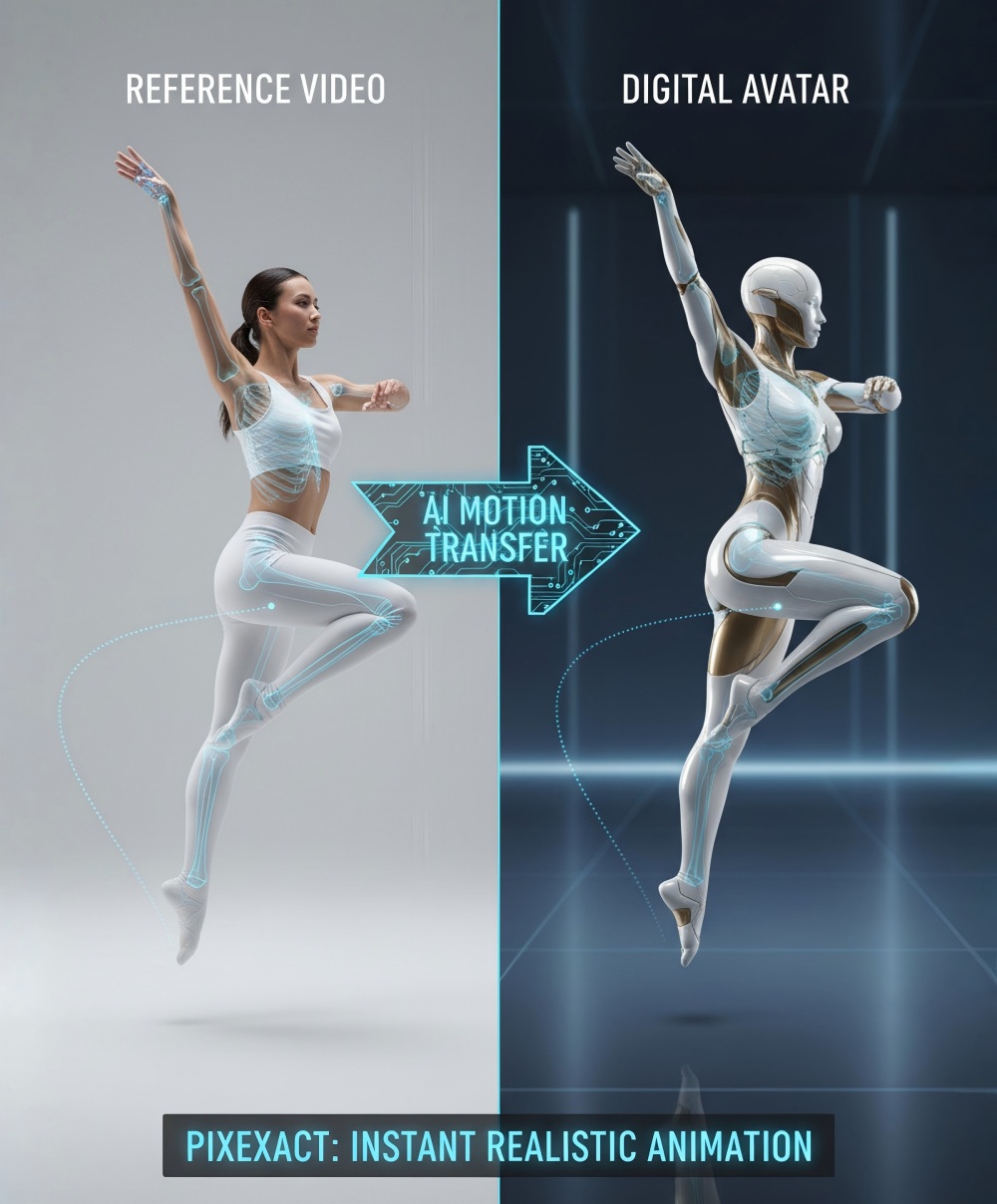
When you upload a video, the tool can track body joints and facial points. It maps this motion data onto a digital character.
This process is often called motion transfer or motion capture without suits. For text-to-video tools like Sora 2, Runway Gen-4.5, or Kling 2.6, you type a prompt and the system generates frames that follow your instructions.
Some tools also let you control camera angle, character pose, scene lighting, and lip-sync. Other platforms, such as Synthesia, focus on presenter-style videos.
You enter a script, and the AI creates a speaking avatar with synced voice and mouth movement. Behind the scenes, the system predicts what each frame should look like based on your input.
It then stitches the frames into smooth animation.
Key Benefits of AI-Powered Animation
AI-powered animation reduces the skill barrier. You do not need to master keyframing, rigging, or complex timelines to get started.
It also saves time. Tasks that once required hours of manual adjustment now happen in minutes.
For example:
| Task | Traditional Time | AI-Assisted Time |
|---|---|---|
| Basic character lip-sync | 1–2 hours | A few minutes |
| Simple motion transfer | Several hours | Under 30 minutes |
| Short promo video draft | 1–2 days | Same day |
You also lower costs. You may not need motion capture gear, studio space, or a full animation team for early drafts.
AI animation tools support fast testing. You can create multiple versions of a scene and compare them quickly.
This helps you refine ideas before final production.
How AI Animation Differs from Traditional Methods
Traditional animation relies on manual control. You draw each frame, set keyframes on a timeline, or capture motion with special suits and cameras.
With AI animation, the software predicts and fills in movement for you. You guide the system with prompts, reference videos, or simple controls instead of adjusting every detail by hand.
In traditional workflows, you often need deep knowledge of animation principles and advanced software skills. Strong drawing or 3D modeling ability is also required.
With an AI Animation Tool, you focus more on direction and concept. You choose the input, adjust settings, and refine results.
You still need to review outputs, fix errors, and guide the creative direction. AI handles repetition and heavy processing, while you make the final decisions.
Core Features of AI Animation Tools
An effective AI Animation Tool gives you direct control over motion, characters, voice, and timing. You can turn text into moving scenes, build custom avatars, add AI voiceover, and adjust everything in real time with built-in video editing tools.
Text-to-Video Generation
Text-to-video generation lets you create animation from a written prompt. You describe the scene, action, camera angle, and mood.
The AI animation generator converts that input into a short animated clip. You can control elements such as character movement, camera motion, lighting style, and scene length.
This feature helps when you lack drawing or rigging skills. Instead of building keyframes by hand, you guide the system with clear instructions.
Many tools also support text-to-animation for specific actions, such as “walk forward and wave.” You can refine results inside the built-in AI video editor.
Adjust speed, trim frames, or regenerate parts of the clip. This workflow saves time and reduces the need for complex manual animation.
Custom Character Creation
Custom character creation allows you to design unique avatars for your project. You can upload an image or generate a character from text.
The tool then applies automated rigging and bone placement. Key animation features often include automatic skeleton setup, facial tracking, motion retargeting, and style adjustments.
If you use AI Motion Transfer from Video to Image, you can map real human movement onto your character. Record a short video of yourself and upload it.
The system tracks body motion and transfers it to your animated figure. You do not need advanced 3D knowledge.
The AI handles most of the technical setup. You focus on character design, pose correction, and expression control.
Speech and Voiceover Capabilities
Speech tools help you add realistic dialogue without hiring voice actors. An integrated AI voiceover system converts text into spoken audio.
You can usually choose voice gender, tone, language, accent, speaking speed, and emotional style. The tool syncs the voice to your character’s mouth using automatic lip-sync.
Some platforms allow you to upload your own recorded audio. The system analyzes the waveform and matches mouth shapes frame by frame.
You can then adjust timing in the AI video editor to fix pauses or emphasis. These speech tools support explainer videos, social media clips, and short animated stories.
Real-Time Preview and Editing
Real-time preview lets you see animation changes instantly. You can adjust motion, camera angle, or lighting and view the update without rendering the full scene.
This feature reduces guesswork. You test ideas quickly and make corrections on the spot.
Most AI animation tools include built-in video editing tools such as timeline trimming, clip splitting, transition effects, and speed control. You can combine multiple scenes, add background music, and insert subtitles in one workspace.
Real-time playback helps you check flow and timing before export. Fast preview and editing keep your workflow simple.
You spend more time improving the story and less time waiting for files to process.
Popular AI Animation Tools and Software
You can now create animated videos, talking avatars, and motion-driven characters without complex rigs or long timelines. The tools below focus on fast setup, prompt-based creation, and simple editing so you can move from idea to finished animation with less technical work.
Animaker
Animaker is a browser-based AI animation tool built for quick video creation. You enter a short prompt, choose tone and length, and the system generates a draft video with scenes, text, and characters.
It also includes AI voice-over generation with multiple languages and voice styles. Auto lip-sync matches character mouth movement to speech.
Subtitle generation is available in one click. Drag-and-drop scene editing is included.
You can adjust characters, timing, transitions, and background elements after the AI creates the first version. This helps you refine pacing and visual clarity without starting over.
Animaker works well if you create marketing videos, explainers, or social content. You do not need advanced animation skills.
However, it focuses more on 2D character and template-based animation than detailed 3D control. If you want speed and guided structure, Animaker keeps the process simple and organized.
Krikey AI
Krikey AI focuses on 3D character animation powered by text prompts and motion presets. You can turn text or short scripts into animated 3D scenes without manual rigging.
Key features include text-to-animation generation, a built-in 3D character library, gesture and facial expression controls, camera angle adjustments, and scene editing tools inside the browser.
You can also upload audio or script dialogue for animated characters. The platform applies preset movements and expressions to match the tone.
Krikey works best when you want fast 3D character performance without learning complex 3D software. It gives you more pose and motion control than many basic AI animation tools.
It may have limits in highly detailed physics or cinematic realism. If you want accessible 3D animation with moderate control, Krikey offers a balanced option between simplicity and customization.
Synthesia
Synthesia specializes in AI avatar videos. Instead of building full animated scenes, you create presenter-style videos using realistic digital humans.
You type a script, select an avatar, and choose a language. The platform generates a video where the avatar speaks your script with synced lip movement.
Important features include a large library of AI presenters, multi-language voice support, custom branded backgrounds, script-based video editing, and screen and slide integration.
Synthesia works well for training videos, onboarding, product demos, and corporate communication. You do not manage timelines or keyframes.
The system handles facial animation and voice sync automatically. This tool does not focus on full cinematic storytelling or action scenes.
It focuses on professional talking-head content. If your goal is fast, clear communication with a human presence, Synthesia provides a practical solution.
PowerDirector
PowerDirector combines traditional video editing with AI animation and motion tools. It is desktop-based software that includes AI-assisted features rather than fully automated scene generation.
You can use AI motion tracking, body and object tracking, AI background removal, AI style effects, and text-to-speech tools. PowerDirector gives you more timeline control than most web-based animation tools.
You manually adjust layers, keyframes, and effects while using AI to speed up repetitive tasks. This makes it useful if you want to combine live footage with animated elements.
For example, you can track a person’s movement and attach animated graphics that follow their motion. It suits creators who want hands-on editing with AI support instead of full automation.
AI Animation Styles and Output Formats
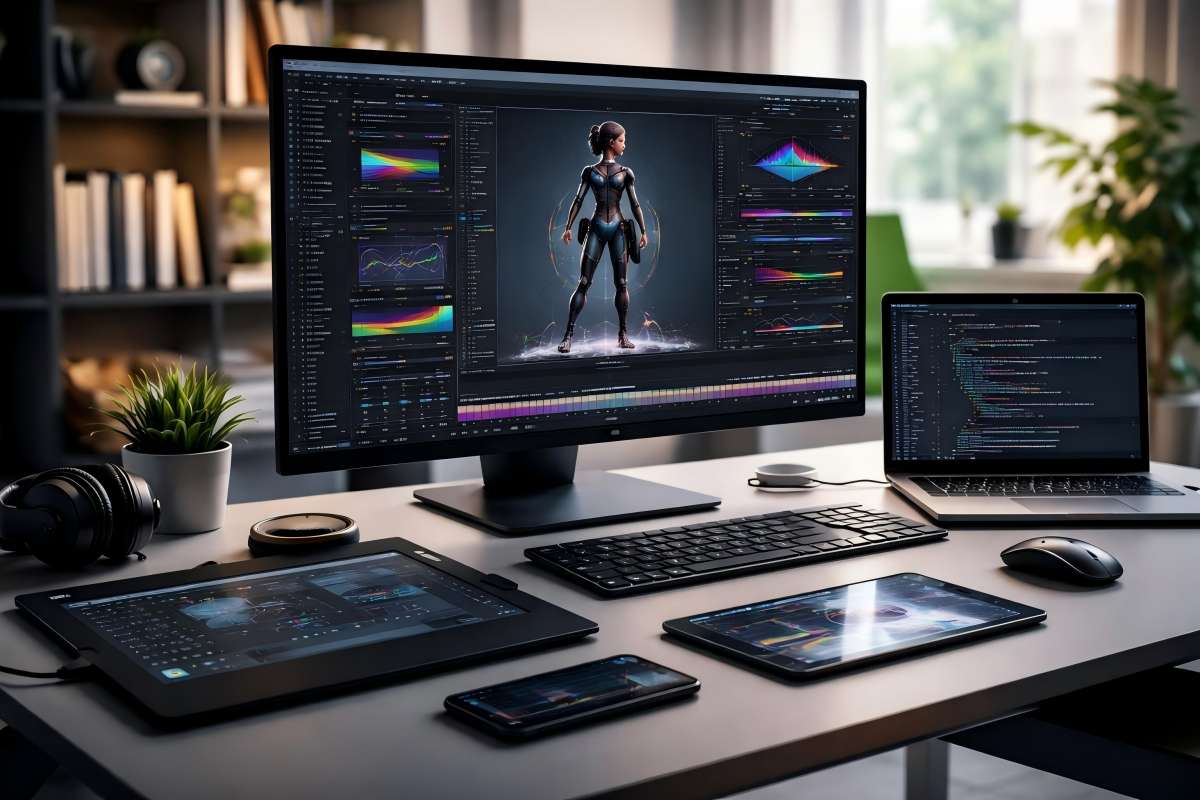
An effective AI Animation Tool gives you control over visual style and export format. You can choose between 2D and 3D AI animation, apply anime or cartoon looks, create short social clips, and work from editable templates that speed up production.
2D and 3D AI Animation
Most AI animation tools support both 2D animation and 3D animation, but they handle them in different ways. In 2D AI animation, the system generates flat characters and backgrounds.
You often work with layers, rigged puppets, or frame-based motion. This format fits explainer videos, ads, and educational content.
Tools may auto-sync lip movement, apply preset motion paths, and export in MP4 or GIF. 3D AI animation adds depth, lighting, and camera movement.
A 3D AI animation workflow may include auto-rigging for character skeletons, physics-based motion, motion capture from video, and real-time pose correction. You can export 3D scenes as MP4, MOV, or image sequences like PNG.
Some platforms also support FBX or OBJ for use in other 3D software. Choose 2D for speed and simplicity.
Choose 3D when you need realistic motion and camera control.
AI Anime and Cartoon Styles
Many creators want specific AI animation styles, especially AI anime and cartoon looks. AI anime tools apply features such as large eyes, sharp line art, and bold color shading.
Some systems transform real video into anime-style frames. Others generate anime characters from text prompts, then animate them with motion transfer or preset actions.
Cartoon styles often include simplified shapes, bright color palettes, exaggerated facial expressions, and elastic motion. You can switch styles by selecting presets or adjusting prompts.
Some AI animation tools let you upload a reference image to guide the design. This helps you keep brand colors or character details consistent.
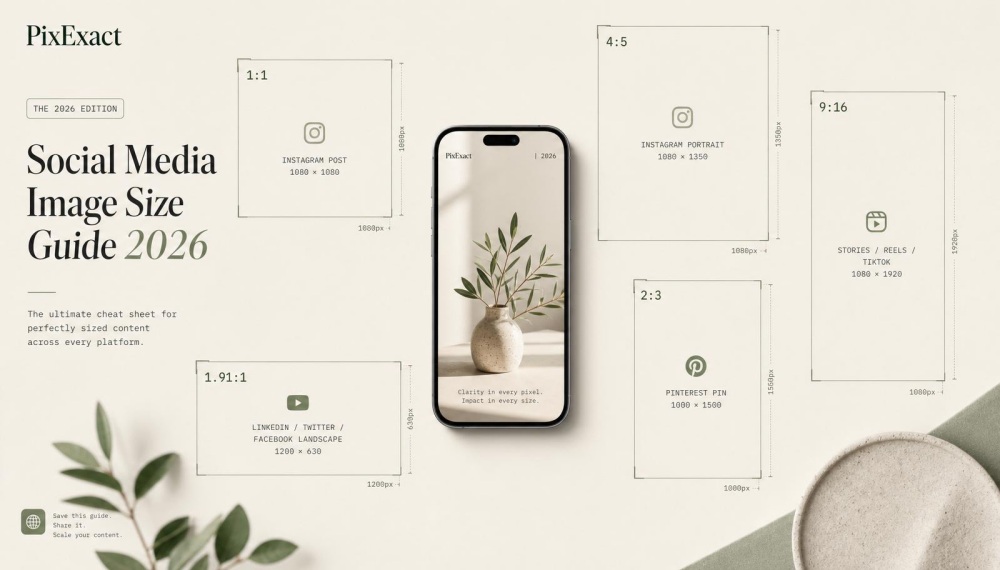
When exporting, check resolution and frame rate. Social platforms often prefer 1080x1920 (vertical) at 24 or 30 fps.
For web cartoons, 1920x1080 horizontal works well.
Social Media Animations
Short-form video drives most online growth. An AI animation tool can format your content for TikTok, YouTube Shorts, and Instagram Reels in minutes.
These tools often include:
| Feature | Why It Matters |
|---|---|
| Vertical canvas presets | Matches mobile viewing |
| Auto captions | Improves accessibility |
| Built-in music sync | Keeps timing tight |
| One-click resizing | Reuse content across platforms |
You can generate AI animations from text scripts, images, or short video clips. Some platforms also trim scenes automatically to fit 15–60 second limits.
Export formats usually include MP4 with H.264 encoding. This format balances quality and file size.
Always preview compression before posting to avoid blurry motion or color shifts.
Customizable Templates
Templates help you move faster, especially if you lack advanced animation skills.
Most AI animation tools provide drag-and-drop templates for:
- Product demos
- Explainer videos
- Character intros
- Logo animations
You can replace text, swap characters, and adjust colors without touching keyframes.
In 3D AI animation templates, you may also adjust camera angles, lighting, and background scenes.
Some tools allow deeper edits such as:
- Changing motion curves
- Adjusting facial expressions
- Editing timing frame by frame
Export options often include MP4, GIF, and sometimes transparent background MOV files.
Transparent exports help when you place animations over live footage or website layouts.
When choosing templates, look for flexibility.
A good template saves time but still lets you control style, pacing, and output quality.
Character Animation and Avatars
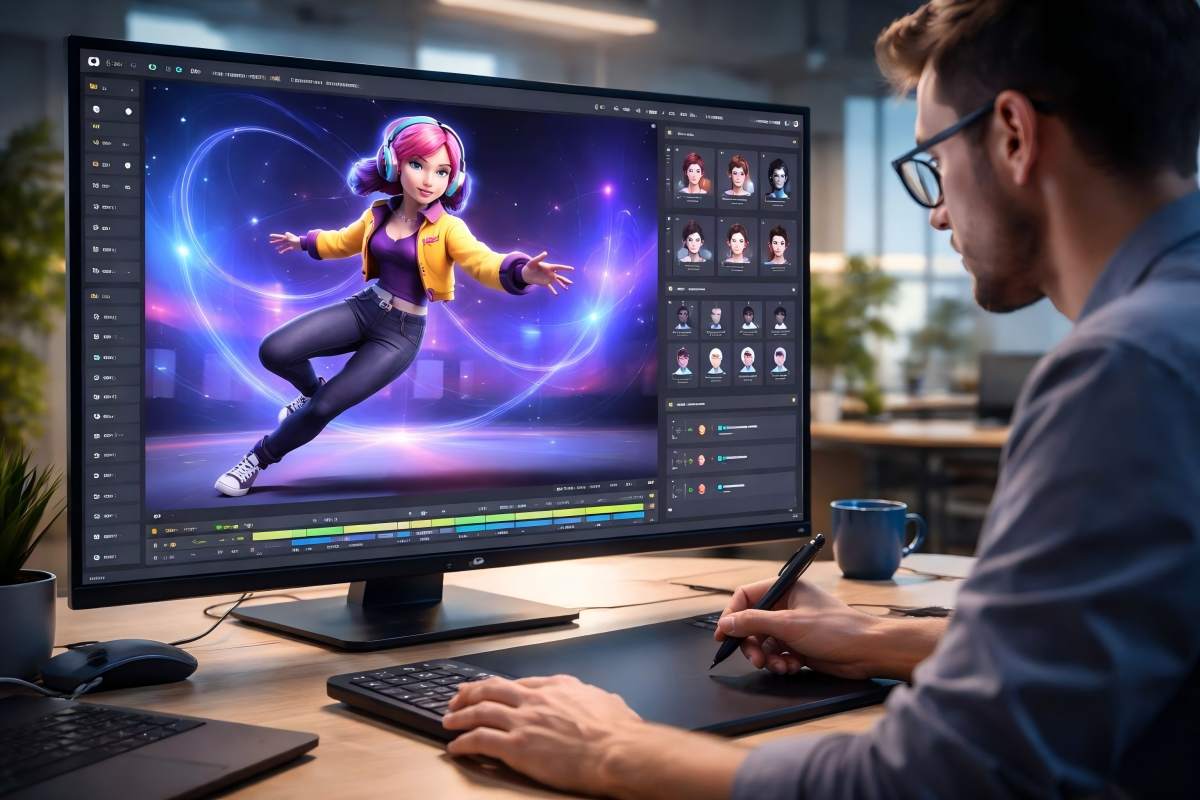
A strong AI Animation Tool lets you turn static images into moving characters with clear speech, natural facial expressions, and controlled body motion.
You can build custom characters, create talking 3D avatars, and map real human movement onto digital models without complex rigging.
3D Avatars and Talking Avatars
You can create 3D avatars from text prompts, photos, or prebuilt templates.
Many AI animation platforms support custom characters, including anime figures, game-style models, and realistic digital humans.
With a few inputs, you can generate talking avatars that speak from typed scripts or uploaded audio.
The system links speech to head movement and subtle gestures.
This process removes the need for manual keyframing.
Talking 3D avatars work well for:
- Product demos
- Training videos
- Social media clips
- Virtual presenters
You stay in control of voice tone, language, and pacing.
Some tools also let you adjust camera angles and background scenes.
This gives your avatar a consistent look across videos.
When choosing an AI Animation Tool for avatars, focus on:
- Support for custom characters
- Voice and language options
- Export quality (HD or 4K)
- Easy scene editing
Clear controls save time and reduce editing errors.
Facial Expressions and Lip Sync
Facial detail shapes how real your animation feels.
A good AI Animation Tool transfers facial expressions from a reference video or generates them from audio input.
Lip sync systems match mouth shapes to spoken words.
This process uses phoneme detection, which links specific mouth positions to sounds.
You do not need to animate each frame.
Look for features such as:
- Automatic lip sync from audio
- Emotion presets (happy, serious, calm)
- Micro-expression support around the eyes and brows
- Head tilt and eye tracking controls
Accurate lip sync matters most in close-up shots.
Even small timing errors can break realism.
Some tools also copy expressions from a live performer.
You record a short video, and the AI maps your facial movement onto your avatar.
This method works well for storytelling and educational content.
Lighting consistency also improves realism.
If your avatar’s face does not match the scene light, viewers notice the mismatch.
Choose tools that adjust shadows and skin tone automatically.
Motion Control and Capture
Motion control lets you define how your character moves in space.
Instead of building animations frame by frame, you use motion capture or preset actions.
Many AI systems now support AI Motion Transfer from Video to Image.
You upload a real-life video, and the tool maps body movement onto your character.
This includes arm swings, walking patterns, and camera motion.
You can refine motion through:
- Speed adjustment
- Loop controls
- Pose correction
- Background cleanup
Free AI motion control features often limit export quality or clip length.
Paid plans usually provide smoother tracking and better motion stability.
For advanced realism, follow these steps:
- Match your character’s body type to the source video.
- Use clean backgrounds in reference footage.
- Keep lighting direction consistent.
- Avoid fast cuts in motion clips.
- Preview motion before final export.
Strong motion capture support turns static custom characters into lifelike performers.
Editing, Customization, and Integration
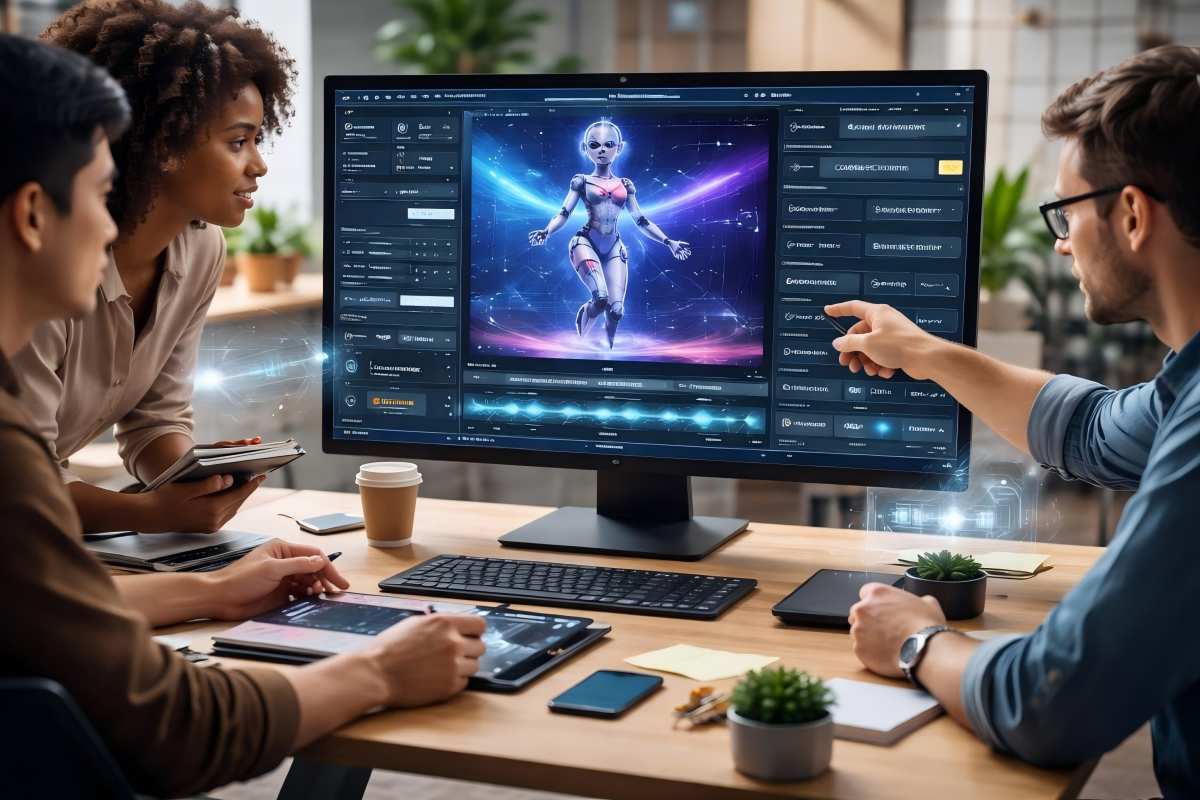
A strong AI Animation Tool does more than generate motion.
You need precise editing control, flexible customization, and smooth integration with your existing video editing software to produce clean, professional ai videos.
Video Editing Software Integration
Your workflow should not stop after video generation.
A reliable AI Animation Tool connects directly with major video editing software such as Adobe Premiere Pro, After Effects, and other Creative Cloud apps.
Many platforms let you export project files or dynamic links, so you can move your ai-powered video into your editor without rebuilding scenes.
This saves time and reduces file conversion issues.
Look for tools that support:
- Timeline-based editing compatibility
- Layer exports with transparency
- Motion data transfer
- Support for common formats like MP4, MOV, and ProRes
Some tools also allow plugin-based integration.
You can adjust color, timing, and transitions inside your main video editing tools while keeping the AI-generated animation intact.
This setup gives you more control over pacing, sound design, and final polish.
Advanced Animation Editing Tools
Basic automation is not enough if you want realistic results.
You need detailed editing controls that let you refine motion, timing, and character behavior.
Strong AI animation platforms include:
- Motion curve editing
- Lip-sync adjustment
- Frame-by-frame correction
- Rig and pose fine-tuning
- Background cleanup tools
You may map motion from a real video onto a character image.
After automatic transfer, you can adjust joint angles, smooth jitter, and refine facial expressions.
Lighting matching tools also improve realism.
If your source video uses side lighting, you can adjust shadows on the animated character to match.
Some platforms also offer built-in background removal and replacement, which helps your ai videos look clean and consistent.
Advanced timing controls allow you to slow down or exaggerate key actions without breaking motion flow.
This level of customization makes your animation feel intentional, not robotic.
Export Options and Sharing
Export flexibility affects how easily you publish and distribute your work.
A good AI Animation Tool supports multiple resolutions, frame rates, and aspect ratios.
You should be able to export:
- Horizontal (16:9) for YouTube
- Vertical (9:16) for TikTok and Reels
- Square (1:1) for social feeds
- 4K or HD for presentations
Some tools offer direct sharing to social platforms.
Others allow cloud-based project storage for team collaboration.
If you work with clients, look for watermark-free exports and commercial-use licensing options.
Batch exporting also helps when you produce multiple ai-powered video variations.
Use Cases and Applications
An AI Animation Tool helps you turn ideas, scripts, and raw footage into finished visuals without complex keyframing.
You can create animations for ads, lessons, or full 3D scenes by using motion transfer, text prompts, or an AI video generator.
Marketing and Social Media Content
You can use an AI Animation Tool to produce short, high-impact social media animations in minutes.
Instead of hiring a full team, you upload a product image or short clip and generate an ai-generated video with motion, captions, and effects.
This works well for:
- Product demos
- App previews
- Limited-time offers
- Brand storytelling clips
Many tools include text-to-video features.
You enter a short script, and the ai video generator builds scenes, adds transitions, and syncs voiceovers.
This speeds up campaign testing because you can create multiple versions with different hooks or visuals.
You can also map real motion onto AI-generated characters.
For example, record yourself holding a product, then apply that motion to a branded avatar.
This keeps your content consistent while saving filming time.
Keep videos short, clear, and formatted for vertical screens.
Match lighting and brand colors to maintain a professional look across platforms.
Educational and Training Videos
You can create animations for lessons, tutorials, and internal training without advanced design skills.
An AI Animation Tool converts scripts into animated scenes, complete with characters, voiceovers, and on-screen text.
This helps you explain:
- Step-by-step software processes
- Safety procedures
- Customer service workflows
- Technical concepts
If you teach complex topics, use motion transfer to demonstrate actions clearly.
Record a real task, such as assembling a part, then apply that movement to a clean digital model.
This removes background clutter and focuses attention on the steps.
AI-generated video also supports quick updates.
When policies change, you edit the script and regenerate the scene instead of reshooting footage.
For best results, keep scenes simple.
Use clear labels, slow movements, and consistent pacing.
This improves understanding and reduces viewer fatigue.
Gaming and 3D Animation Production
Game developers and 3D artists use AI Animation Tool platforms to speed up character animation.
Instead of manual keyframing, you capture motion from a standard video and transfer it to a 3D rig.
This process supports:
- Combat moves
- Walk cycles
- Facial expressions
- Cutscene animations
AI motion transfer from video to image allows you to test movements early in development.
You can apply recorded actions to placeholder characters before final assets are ready.
This shortens production cycles and reduces rework.
Some systems also generate physics-aware motion.
They adjust balance and joint angles to make movements look natural in 3D space.
You still refine the results, but the AI handles the base animation.
Use clean source footage with clear body outlines.
Avoid heavy shadows or busy backgrounds.
When you match lighting and camera angles between your source video and 3D scene, the final animation looks more consistent and believable.
Frequently Asked Questions
AI animation tools now let you turn images into moving clips, create videos from text, and build 3D scenes in a browser.
Most platforms follow a clear workflow: upload or describe your idea, let the model generate motion, then adjust timing, style, and export settings.
How can I generate animations from images using AI?
You can animate a still image by using an AI Animation Tool that supports image-to-video or motion transfer.
First, upload your image.
Then upload a short reference video or select a preset motion style.
The tool tracks body movement or camera motion from the video and maps it onto your image.
Adjust timing, smoothness, and background settings before you export.
Some tools also let you refine lighting and add simple effects to improve realism.
What are the best free online AI tools for creating animations?
Several platforms offer free plans with limits on exports or credits.
Animaker AI provides a free tier for basic animated videos with templates and drag-and-drop editing.
Runway ML offers limited free credits for text-to-video and image-to-video generation.
Cascadeur includes a free version for basic 3D animation features.
Free plans usually add watermarks, restrict resolution, or limit monthly exports.
You can test features before you upgrade.
Are there any AI-based tools that can turn text into animations?
Yes.
Many AI animation tools now support text-to-video features.
OpenAI Sora 2 generates short video clips from natural language prompts.
Google Veo 3 creates realistic videos with synced audio from text input.
Tools like Runway ML also allow text-to-video and text-guided edits.
You type a clear prompt that describes the scene, action, and camera style.
The system generates a short animated clip based on that description.
Can I create 3D animations online with AI without any cost?
You can create simple 3D animations for free, but with limits.
Cascadeur offers a free version with core features for physics-based character animation.
Some cloud platforms provide trial credits for 3D motion generation.
However, advanced rendering, long exports, or commercial use often require a paid plan.
Free tools work best for learning and short test projects.
What is the process for creating an animation with an AI animation tool?
Most tools follow a clear five-step workflow:
-
Input your source – Upload an image, video, 3D model, or enter a text prompt.
-
Select motion style – Choose motion transfer, auto-rigging, or text-to-video generation.
-
Let AI generate movement – The system analyzes input and creates animation frames.
-
Refine the output – Adjust timing, camera angle, lighting, and character details.
-
Export the final video – Download in your preferred format and resolution.
Cloud-based platforms handle rendering online.
Desktop tools may require stronger hardware for complex 3D scenes.
How does AI animation compare to traditional animation software?
AI animation speeds up repetitive tasks like keyframing, lip-syncing, and rigging.
Traditional software such as Autodesk Maya and Adobe After Effects gives you deep manual control. You set keyframes, adjust curves, and fine-tune every movement.
This takes more time and skill.
An AI Animation Tool automates many of these steps. You focus more on direction and style instead of frame-by-frame editing.
For simple projects and fast content creation, AI tools reduce production time.
For complex films or detailed VFX work, traditional software still offers more precise control.