Recommended YouTube Thumbnail Size
YouTube requires 1280 x 720 pixels at a 16:9 aspect ratio for thumbnails to display properly across all devices. Files must stay under 2MB and use accepted formats like JPG or PNG.
Ideal Dimensions and Aspect Ratio
The best YouTube thumbnail size is 1280 x 720 pixels. PixExact generates thumbnails at this exact size. This creates a 16:9 aspect ratio that matches standard video format.
Your thumbnail needs to be exactly 1280 pixels wide by 720 pixels tall to look sharp on every device. This includes phones, tablets, computers, and TVs.
The 16:9 ratio means that for every 16 units of width, there are 9 units of height. The minimum width YouTube accepts is 640 pixels.
But using anything less than 1280×720 pixels will make your thumbnail look blurry or pixelated. Important: Never place text or key visual elements in the bottom right corner of your thumbnail.
YouTube displays a timestamp overlay in that area that will cover your content. Keep all important elements on the left side or center of your thumbnail to avoid this problem.
Minimum and Maximum File Size Requirements
Your thumbnail file must not exceed 2MB in size. Going over this limit causes YouTube to compress your image automatically, which reduces quality.
Most thumbnails at 1280 x 720 pixels will stay well under 2MB when saved properly. If your file is too large, reduce the quality setting when you export or save the image.
A quality setting between 85-90% works well for JPG files. There is no official minimum file size.
But extremely small files usually mean low quality images that won't look good to viewers. Aim for a file size between 100KB and 2MB for the best balance of quality and loading speed.
Accepted File Formats and Technical Specs
YouTube accepts these file formats for thumbnails:
- JPG/JPEG - Best for photos and images with lots of colors
- PNG - Best for graphics, text, and images needing transparency
- GIF - Only static images (no animation)
- WebP - Newer format with good compression
- BMP - Rarely used due to large file sizes
JPG works well for most thumbnail needs because it creates smaller files. PNG is better when your thumbnail has sharp text or graphics because it doesn't blur edges like JPG does.
Use the sRGB color profile for your images. This ensures colors look the same across different devices and screens.
Save your thumbnail at 72 PPI (pixels per inch) at minimum for standard displays.
Why Proper Thumbnail Size Matters
Your thumbnail size matters
Getting the correct YouTube thumbnail size affects how your videos appear across different screens. It influences viewer decisions to click and helps YouTube's system recommend your content to the right audience.
Display Quality Across Devices
Your YouTube video thumbnail appears on phones, tablets, and desktop computers. Each device shows your thumbnail at different sizes.
When you use the recommended 1280x720 pixels, your thumbnail stays sharp on all screens. A thumbnail smaller than 640 pixels wide will look blurry on larger displays.
The 16:9 aspect ratio prevents YouTube from cropping your image. This ratio matches how YouTube displays videos.
Your file must stay under 2MB. Use JPG format for photos with many colors.
PNG works better for graphics with text and solid colors. Both formats keep your thumbnail looking professional when viewers see it in search results or their recommended feed.
Impact on Click-Through Rate
Your custom YouTube thumbnail directly affects how many people watch your video. Data shows that 90% of the best-performing videos use custom thumbnails.
Key elements that drive clicks:
- High contrast text that viewers can read on small screens
- Clear focal points using the rule of thirds
- Bright colors that stand out in crowded feeds
Avoid placing important text or faces in the bottom right corner. YouTube places a timestamp overlay there that blocks part of your thumbnail.
Position your main subject on the left side to prevent this issue. Small thumbnails in suggested video lists need simple designs.
Too many elements make your thumbnail design confusing. Focus on one strong visual message that tells viewers what they'll get from your video.
Algorithmic and SEO Benefits
YouTube's algorithm tracks which thumbnails get more views. When your thumbnail earns clicks, YouTube shows your video to more people.
Search engines display YouTube thumbnails in results pages. A sharp, properly sized thumbnail makes your video stand out in Google searches.
The correct YouTube thumbnail dimensions ensure your image renders correctly in search previews. Consistent thumbnail best practices help build your channel's visual identity.
Viewers recognize your style in their feed. This recognition increases the chance they'll click your videos over competing content.
Upload thumbnails in JPG, PNG, or GIF format. These formats work with YouTube's compression system while maintaining quality.
Your metadata and thumbnail work together to help YouTube understand your content and show it to interested viewers.
YouTube Shorts and Vertical Thumbnails
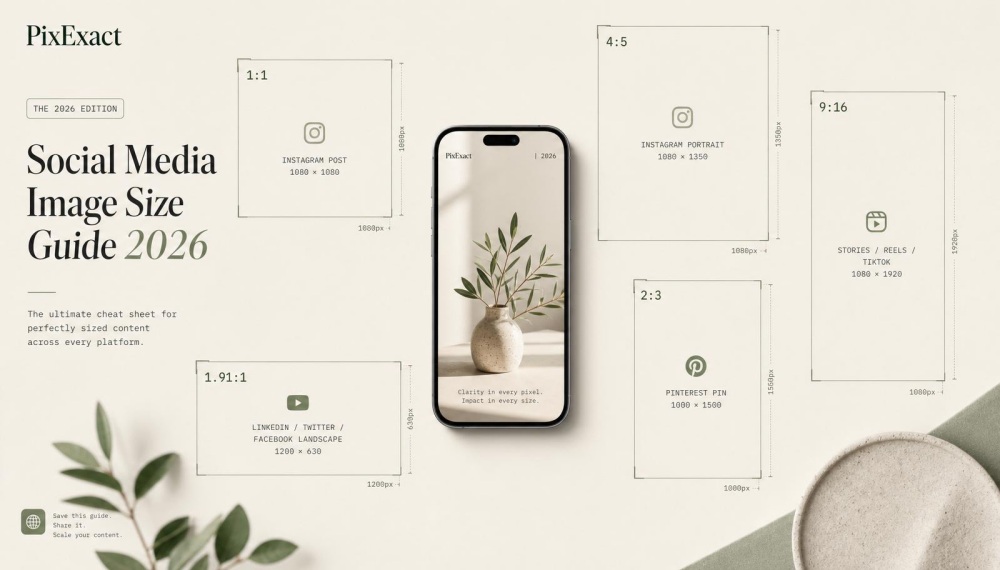
YouTube Shorts uses a vertical 9:16 format that creates different thumbnail requirements than standard videos. The platform automatically crops standard 16:9 thumbnails when displaying Shorts, which means your thumbnail design needs to account for both formats.
Recommended Thumbnail Size for Shorts
The optimal YouTube Shorts thumbnail dimensions are 1080 x 1920 pixels. This resolution gives you crisp image quality on mobile devices where most viewers watch Shorts content.
You need to design with mobile viewers in mind. Your thumbnail appears much smaller in the Shorts feed compared to regular video thumbnails.
This means you should use larger, bolder elements that remain visible at reduced sizes. Keep important visual elements centered in your design.
When YouTube displays your thumbnail in different contexts, the platform may crop from the edges. A center-focused composition ensures your key message stays visible regardless of where the thumbnail appears.
9:16 Aspect Ratio and Unique Requirements
The 9:16 aspect ratio is the standard for vertical video on YouTube Shorts. This portrait orientation matches how people naturally hold their phones.
Your design strategy needs to change for vertical thumbnails:
- Place faces and key subjects in the upper two-thirds of the frame
- Use vertical text stacking instead of horizontal layouts
- Increase font sizes by 20-30% compared to standard thumbnails
- Limit text to 3-5 words maximum for better readability
Higher contrast becomes critical for vertical thumbnails. The smaller display size in mobile feeds means your thumbnail competes with dozens of other options on a single screen.
Bold colors and clear subjects help your content stand out.
Thumbnail Upload Process for Shorts
YouTube requires you to upload thumbnails in the standard 16:9 format even for Shorts videos. The platform doesn't currently offer a direct way to upload custom vertical thumbnails specifically for Shorts content.
Create your thumbnail at 1280 x 720 pixels with your most important elements positioned in the center. YouTube will automatically crop your thumbnail to fit the vertical 9:16 display when showing your Short in feeds.
Test how your 16:9 thumbnail will look when cropped to vertical. Use a safe zone template that shows the center portion that remains visible after cropping.
This prevents crucial text or visual elements from getting cut off on the left and right edges.
How to Create a Custom YouTube Thumbnail
Creating a custom thumbnail involves setting up the right dimensions and choosing design tools that fit your workflow. Properly uploading your finished image to YouTube is also key.
The process requires attention to technical specifications and design principles to ensure your thumbnail displays correctly across all devices.
Selecting the Correct Canvas Size
You need to set your canvas to 1280 x 720 pixels with a 16:9 aspect ratio. This is the standard YouTube thumbnail size that ensures your image displays properly on desktop, mobile, and TV screens.
Your canvas width must be at least 640 pixels wide. Anything smaller won't meet YouTube's requirements for a custom thumbnail upload.
Keep your file size under 2MB. YouTube accepts JPG, PNG, and non-animated GIF formats.
Important Design Consideration: Avoid placing text or key visual elements in the bottom right corner of your thumbnail. YouTube displays a timestamp overlay in this area that will cover your content.
Position your subject on the left side or use the rule of thirds to keep important elements visible. For high contrast text, use bold fonts that remain readable even when your thumbnail appears as a small preview.
Design tools like Kapwing recommend fonts like Impact or Bangers for maximum visibility.
Using Templates and Design Tools
YouTube thumbnail templates save time and ensure you start with the correct dimensions. Most design platforms offer pre-made layouts specifically sized at 1280 x 720 pixels.
Popular tools for creating thumbnails include:
- Canva - offers free templates with drag-and-drop editing
- Adobe Express - provides background removal and custom text options
- Picsart - includes filters and composition tools
- PixExact - generates thumbnails at exactly 1280 x 720 with subject positioning control on the left
When you customize your template, focus on high contrast colors and minimal text. Your thumbnail needs to grab attention in a crowded feed.
Use the rule of thirds to position your main subject. This compositional technique places focal points at intersecting grid lines rather than dead center.
Uploading a Custom Thumbnail
Navigate to YouTube Studio and select the Content section. Click on the video you want to add a thumbnail to.
Under the Thumbnail header, select Upload File. Choose your saved image file (JPG or PNG format recommended).
YouTube will process your image and display it as your video's thumbnail. Preview how it looks on different devices before publishing.
Your account must be verified to upload custom thumbnails. If you don't see the upload option, you need to verify your YouTube account through your phone number first.
Best Practices for YouTube Thumbnail Design

Bold colors with strong contrast and readable text are what separate thumbnails that get clicks from those that get ignored. Your branding needs to stay consistent so viewers recognize your content instantly.
Use Contrasting Colors for Visibility
Your thumbnail needs to stand out in a crowded feed where hundreds of videos compete for attention. Using contrasting colors helps your thumbnail pop on any screen size.
Aim for a contrast ratio of at least 4.5:1 between your text and background to make everything readable. Warm colors like red, orange, and yellow tend to grab attention faster than cooler tones.
But avoid using YouTube's signature red for buttons or icons since it blends into the platform's interface and confuses viewers. Instead, pair complementary colors like blue and orange or purple and yellow.
Avoid putting important visual elements in the bottom right corner. YouTube places a timestamp overlay there that covers roughly 80 pixels of space.
Text or faces positioned in that area get hidden, which wastes your design effort and confuses viewers about what they'll watch.
Choosing Fonts and Readable Text
Your text needs to be readable on a phone screen that's only 120 pixels wide. Bold or semi-bold fonts work best because they stay clear when scaled down.
Sans-serif fonts perform better than serif fonts at small sizes. Keep your text short.
Three to five words maximum works best. Any more than that becomes hard to read and cluttered.
Your text should support the video content, not explain everything. Make sure your font size is large enough to read on mobile devices where 69% of YouTube views happen.
Test your thumbnail at smaller sizes before uploading to catch readability problems early.
Consistent Branding and Style
Consistent branding builds channel recognition and helps viewers find your content in their feed. Create a template that includes your logo, color scheme, and layout style.
Place your logo in one of the four corners at roughly 5-10% of the thumbnail width. Use the same fonts across all your thumbnails.
Stick to two fonts maximum: one for headlines and one for supporting text. This consistency makes your channel look professional and trustworthy.
Your color palette should match your channel's overall brand. Pick three to four colors and use them repeatedly.
This doesn't mean every thumbnail looks identical, but viewers should recognize your style instantly when scrolling through search results.
Common YouTube Thumbnail Mistakes to Avoid

Even creators who understand the basics of thumbnail design often make critical errors that hurt their video performance. Wrong dimensions cause blurry uploads, low resolution makes content look unprofessional, and policy violations can get your video removed or demonetized.
Incorrect Dimensions or Aspect Ratio
Using the wrong dimensions is one of the most common YouTube thumbnail mistakes that immediately hurts your video's appearance. When you upload thumbnails that don't follow the 16:9 aspect ratio, YouTube stretches or crops your image to fit.
This creates distorted visuals with awkward black bars on the sides. The standard youtube thumbnail size is 1280x720 pixels.
Anything smaller forces YouTube to upscale your image, which causes pixelation and blur. Square thumbnails (1:1) or vertical images (9:16) won't display correctly in YouTube's player.
Your minimum width should be 640 pixels, but staying at 1280x720 keeps your content sharp on all devices. Creating thumbnails at different aspect ratios like 4:3 creates pillarboxing that wastes valuable screen space and makes your videos look outdated.
Important: Never place text or key visual elements in the bottom right corner. YouTube overlays a timestamp there on videos longer than 10 minutes, which will cover up anything you put in that spot.
Low Resolution and Blurry Images
Blurry thumbnails signal low-quality content to viewers before they even click. When you use images below the recommended youtube thumbnail dimensions, YouTube automatically scales them up.
This scaling destroys image clarity and makes text impossible to read on mobile devices. Screenshots taken directly from paused video frames rarely have adequate resolution unless you export them properly.
Your thumbnail resolution needs to be exactly 1280x720 to maintain sharpness across desktop, mobile, and TV displays. Using low-resolution images appears unprofessional and reduces click-through rates.
Viewers scroll past blurry thumbnails because they assume the actual video quality will be just as poor. Choose PNG format for graphics with text or logos since it keeps edges crisp.
Use JPG format for photo-based thumbnails with gradients. Both formats must stay under the 2MB file size limit while maintaining quality at 1280x720 pixels.
Violating YouTube Policies
YouTube removes or demotes videos with thumbnails that break community guidelines. Misleading thumbnails that don't represent your actual content damage viewer trust and hurt your channel's reputation with the algorithm.
Avoid clickbait tactics like fake play buttons, exaggerated claims, or misleading text that promises content you don't deliver. Don't use sexually suggestive imagery, violence, or graphic content in your thumbnails.
YouTube also prohibits thumbnails with excessive profanity or hate speech. Even if your video content is appropriate, a policy-violating thumbnail can get your video demonetized or removed entirely.
Keep your thumbnails honest and accurate. Show real scenes from your video or create graphics that genuinely represent what viewers will watch.
Advanced Tips and Optimization Strategies
Testing different thumbnail versions and tracking their performance helps you understand what attracts your audience. Proper optimization across platforms and data-driven improvements can significantly increase your click-through rates.
Testing and Comparing Thumbnails
You should test multiple thumbnail variations to find what works best for your audience. YouTube allows you to change thumbnails after publishing, making it easy to compare performance between different designs.
Create two or three versions of each thumbnail with different elements. Try varying the text placement, facial expressions, color schemes, or background styles.
Upload your video with one version and track the click-through rate for 24-48 hours. Elements to test include:
- Text size and placement
- Color contrast levels
- Facial expressions
- Background complexity
- Image focal points
Use A/B testing strategies to compare results objectively. Track which thumbnails generate higher click-through rates in your analytics dashboard.
Keep the winning design and apply those principles to future thumbnails. YouTube thumbnail templates can speed up your testing process.
Create custom templates with consistent layouts but variable elements. This approach maintains brand consistency while letting you experiment with different hooks.
Optimizing for Different Platforms
Your thumbnail appears differently across devices and platforms. A design that looks great on desktop might be hard to read on mobile screens where most viewers watch content.
Platform-specific considerations:
| Platform | Key Requirement |
|---|---|
| Mobile | Larger text, simpler design |
| Desktop | More detail acceptable |
| Smart TV | High contrast essential |
| Tablet | Balance of detail and clarity |
Never place important text or visual elements in the bottom right corner. YouTube displays a timestamp overlay there that covers roughly 20% of that area.
Position your key subjects on the left or center using proper composition control. Test your thumbnails on multiple devices before publishing. For image dimensions on other platforms, see our Facebook ad sizes and Instagram post size guides.
Open them on your phone to check text readability. What looks clear on a computer monitor often becomes unreadable on a 5-inch screen.
Utilizing Analytics for Improvement
YouTube Analytics shows exactly how your thumbnails perform through click-through rate data. You can access this information under the "Reach" tab in YouTube Studio.
Review your CTR regularly to identify patterns. Videos with CTR above 10% typically have effective thumbnails.
Anything below 2% suggests your thumbnail needs improvement. Key metrics to monitor:
- Click-through rate percentage
- Impressions received
- Traffic sources
- Audience retention after click
Compare thumbnails across similar videos to find your best performers. Look at which design elements your custom YouTube thumbnails share.
Apply successful thumbnail best practices consistently. Track performance over time rather than just the first few days.
Some thumbnails perform better in search results while others excel in suggested video feeds. This data helps you optimize for specific discovery methods.
Frequently Asked Questions
YouTube thumbnail specifications include exact dimensions of 1280x720 pixels, a 2MB file size limit, and JPG, PNG, or GIF format requirements. Understanding how YouTube processes thumbnails that don't meet these standards helps you avoid display issues and maintain professional quality across all devices.
What are the dimension requirements for a YouTube video thumbnail?
The recommended YouTube thumbnail dimensions are 1280x720 pixels. Your thumbnail must have a minimum width of 640 pixels to be accepted.
The aspect ratio needs to be 16:9 to display properly. Using these exact dimensions ensures your thumbnail appears correctly whether someone views it on a phone, tablet, computer, or TV screen.
Is there an optimal resolution to ensure high quality display of YouTube thumbnails across devices?
The best youtube thumbnail resolution is 1280x720 pixels at 72 DPI or higher. This resolution provides sharp, clear images on all screen sizes without creating unnecessarily large files.
Higher resolutions like 1920x1080 use the same 16:9 aspect ratio, but they create larger file sizes. Since YouTube limits thumbnail uploads to 2MB, you might need to compress a larger image more heavily, which can actually reduce quality.
Sticking with 1280x720 gives you the right balance between quality and file size.
How does YouTube handle thumbnails that do not match the suggested aspect ratio?
YouTube automatically crops thumbnails that don't match the 16:9 aspect ratio. The platform will cut off parts of your image to force it into the correct frame dimensions.
How much gets cropped depends on your original image dimensions. You might lose important visual elements from the sides, top, or bottom of your thumbnail.
If you manually add black bars to fill the 16:9 frame, your thumbnail won't get cropped. However, this means you're not using all the available space for your design.
Can you provide guidelines on the safe zone for text and logos in YouTube thumbnails to avoid cropping?
You should avoid placing text or key visual elements in the bottom right corner of your thumbnail. YouTube displays a timestamp overlay in this area that blocks part of your design.
The timestamp typically covers about 15-20% of the bottom right corner. Important elements like faces, logos, or critical text should stay in the left two-thirds of your thumbnail.
Using the rule of thirds helps you position key elements at safe intersection points. This keeps your most important content visible and draws viewer attention to the right spots.
Are there any file size or format limitations when uploading thumbnails to YouTube?
Your thumbnail file must be 2MB or smaller. YouTube accepts JPG, GIF, and PNG formats for thumbnail uploads.
JPG files work well for photographs and complex images with many colors. PNG files are better when you need transparency or have graphics with sharp edges and solid colors.
PNG files are usually larger than JPG files for the same image. If your PNG exceeds 2MB, you can either compress it or convert it to JPG format.
What are the consequences of uploading a thumbnail that doesn't meet YouTube's guidelines?
YouTube may reject your thumbnail if it doesn't meet the technical requirements. Even if the platform accepts an incorrectly sized thumbnail, it will appear blurry, cropped, or stretched on different devices.
Poor quality thumbnails hurt your click-through rates because they look unprofessional. Viewers scroll past fuzzy or poorly composed thumbnails in favor of crisp, clear images.
Your audience retention metrics will also suffer if your thumbnail uses misleading clickbait that doesn't match your video content. YouTube's algorithm notices when viewers click but don't watch, which can reduce your video's reach.