
AI Video Extender
AI Video Extender: Give Your Short Clip More Time
Keep a shot going when it ends too early. Upload your clip, choose how many extra seconds to generate, and describe what happens next—or leave the prompt blank for a natural continuation.
- Generate new footage instead of repeating the clip
- Guide the action with an optional text prompt
- Choose Kling 4 or Seedance 2.5
Extend your video where the moment needs more time
Continue the camera movement
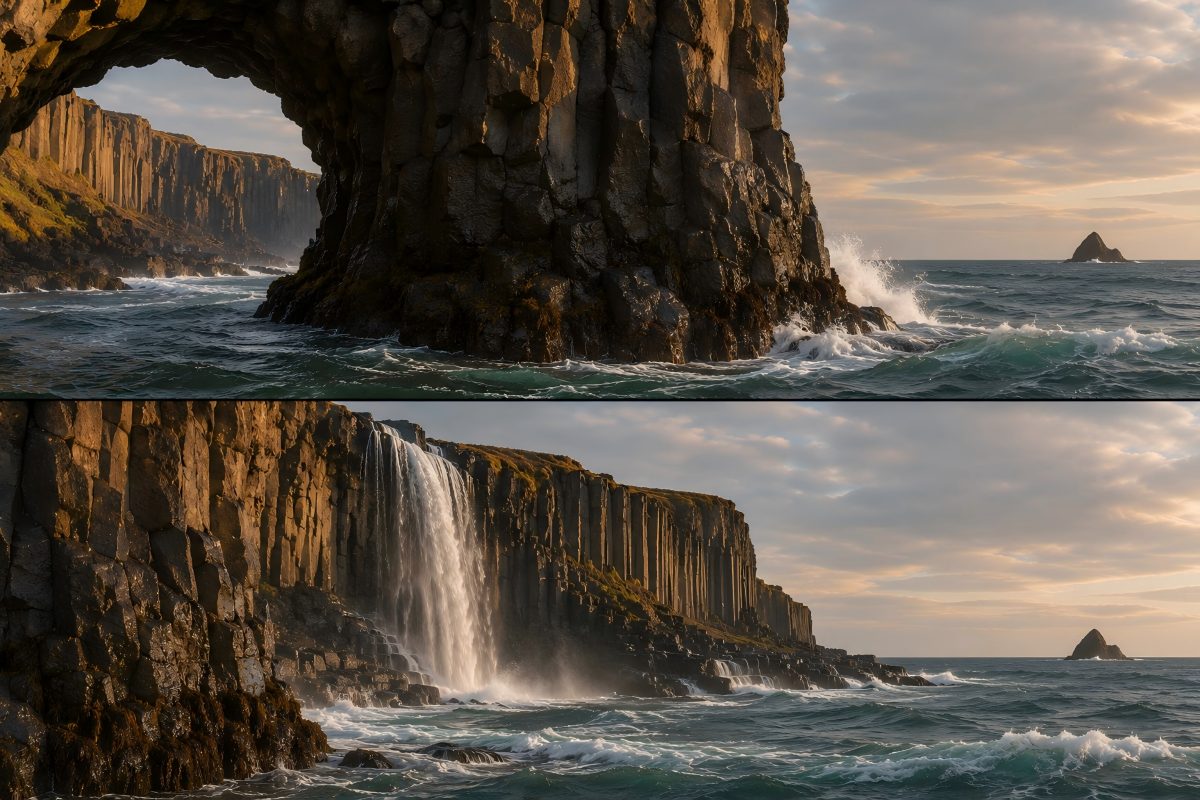
A landscape pan, a slow product reveal, or a cinematic push-in can stop just as the shot starts to work. Extend the clip to give that camera move more room without looping the same footage.
Keep the direction and speed specific: ask the camera to continue moving, then describe what comes into view.
Give a short clip a more natural ending
Let an animation finish its movement, a product complete its turn, or a scene settle before the next cut. New footage can give your edit breathing room without slowing down the original clip.
Describe one finishing action. For a quieter ending, ask the motion to settle and the camera to hold.
Add the moment before the first frame
Sometimes a video starts too abruptly. With Seedance 2.5, generate a lead-in: a paper airplane entering the shot, an object moving into place, or the camera approaching the scene.
Choose “At the beginning” and describe what leads into the first frame of your clip.
How to extend video length with AI
Upload the clip you want to keep
Choose an MP4 or MOV file, or select a video from My Library. Start with a clear, coherent shot; the source video gives the AI its visual and motion context.
Choose the extra seconds and next action
Pick a video model, resolution and added duration. With Seedance 2.5, you can add footage at the end or at the beginning. Use the prompt to guide the continuation, or leave it blank.
Generate, review and download
Check Required Credits, then select Extend video. Play the result and compare it with your source clip, especially the join, movement and audio. Download the take that works for your edit.
Choose a video model for your extension
| Video model | Added video length | Resolution | Extension controls | Source clip |
|---|---|---|---|---|
| Seedance 2.5 | 4–30 seconds | 480p / 720p / 1080p | At the end or at the beginningNo end-frame controlAudio on or off | MP4 / MOV · 2–30s · up to 200 MB |
| Kling 4.0 | 3–30 seconds | 720p / 1080p | At the endOptional end frameAudio included | MP4 / MOV · 3–30s · up to 50 MB |
Kling 4 charges for the added seconds. Seedance 2.5 charges for the source video plus the generated seconds. Required Credits shows the cost for your current settings.
Kling 4 combines the original and the extension. If a model returns only the new footage, place it before or after your source clip in your video editor.
Guide video continuation with a clear prompt
Start with the action already on screen, then describe one next movement. Mention what should stay consistent, such as camera speed, lighting or the position of an object. You do not need to write a new scene from scratch.
- Continue a camera move
- The camera keeps moving slowly to the right, revealing more of the coastline. Keep the same height, speed and afternoon light.
- Let the action finish
- The toy car rolls to a gentle stop beside the box. The wheels settle, and the camera holds the same view.
- Set up the opening
- The paper airplane enters from the left and glides toward the position where it appears at the start of the source video.
Leave the prompt blank when you only want a natural continuation. Use AI Prompt if you want help describing the action.
Help your video extension match the shot
| What you notice | What to try next |
|---|---|
| The join changes pose, lighting or camera speed | Start from a clear source clip. Describe the existing motion and keep the next action simple. Compare the last frame of the source with the first new frames. |
| The continuation adds too much action | Ask for one finishing movement or a steady hold. Avoid introducing several new subjects, a different setting or a sudden camera change in the same extension. |
| The upload or generation is rejected | Check the model's format, file size and source-duration limits. Try a standard MP4 export. For footage of real people, choose Kling 4; such clips may be rejected by Seedance 2.5 in this tool. |
AI Video Extender FAQ
What is an AI video extender, and how does it work?
An AI video extender generates new frames that continue an existing clip. It uses the source video and, optionally, your text prompt to guide the new footage. Unlike a video generator that starts a new shot, video extension builds on a moment you already have.
How long can I extend a video with AI?
Kling 4 adds 3–30 seconds per generation; Seedance 2.5 adds 4–30 seconds. Video Length means the extra seconds to generate, not the total duration including your source. For example, a 10-second source plus 5 new seconds makes 15 seconds when assembled together.
Will the extension match my original video seamlessly?
The AI uses your source video as context, but perfect continuity is not guaranteed. Clear subjects, steady lighting and a simple next action make the join easier to direct. Review faces, hands, objects, camera movement and sound before using the extended clip in a finished project.
Do I need a prompt, and can I control what happens next?
A prompt is optional. Leave it blank for a natural continuation, or describe the next action, camera move or ending you want. If you select “At the beginning”, describe what happens just before your clip starts. Your prompt guides the result; it does not make every frame predictable.
What types of videos can I upload?
Upload a supported MP4 or MOV source clip. Both recorded footage and AI-generated clips can be used, subject to the selected model's limits and content checks. Use the model table above to check source duration and file size. For clips featuring real people, choose Kling 4.
Can I extend AI-generated clips from Kling, Runway or Veo 3.1?
You can upload a supported MP4 or MOV export from another AI video tool; the clip does not have to originate in PixExact. Make sure you have the rights to use it and that it meets the chosen model's upload requirements. The models currently available here are Kling 4 and Seedance 2.5.
Is this a free AI video extender, and do I need to sign up?
You need to sign in and have enough credits to generate an extension. If your account has free credits, you can use them toward the Required Credits shown in the tool. This is not unlimited free AI video extension; the cost depends on your model, duration and resolution.
Does AI video extension keep or generate audio?
Kling 4 keeps the original clip's audio and generates audio for the new segment. With Seedance 2.5, you can turn generated audio on or off. Listen across the join: volume, ambience, music and dialogue may not continue exactly as in your source video.
Does the extension replace my original clip?
Your uploaded file is not overwritten. Kling 4 returns the original clip combined with the new footage. If your result contains only the generated continuation, assemble it with your source video in an editor, placing it before or after the original as appropriate.
Can I make a video loop seamlessly?
A video extension adds new footage; a loop repeats footage and needs its ending to connect to its beginning. Kling 4's optional end frame can help guide the ending toward a chosen image, but it does not guarantee a seamless loop. Check motion and audio at the repeat point.
Is this the same as an AI video expander or upscaler?
This tool extends video length. It does not expand the canvas, change the aspect ratio or recover detail from low-resolution footage. A higher output resolution is a generation setting, not a promise to enhance your entire source clip. Both models keep the source video's aspect ratio.
Can I extend a video on my iPhone or use it for YouTube?
The tool runs in the browser, so you can upload a supported file from your phone or computer. For YouTube, upload a video file you have permission to use; pasting a YouTube URL is not supported. Export your finished edit in the format and dimensions your channel needs.
Can I use extended videos commercially?
PixExact's Terms of Service allow commercial use of generated videos. You still need the necessary rights to your source footage, likenesses, music, logos and other assets. AI video extension does not clear third-party rights for you.
Is my uploaded video private?
Check Public Visibility before you generate. Paid users can turn it off; free accounts use public visibility. PixExact stores uploaded media and results to provide the service and your generation history. See the Privacy Policy for data handling and deletion details.
What if the AI video extender does not work or the result looks wrong?
For a rejected request, check the source format, duration and file size first. For a completed result with unwanted motion or visual drift, try a clearer source, a shorter extension or a simpler prompt. Failed generation jobs are refunded; a completed result you do not like is not automatically a failed job.
Can I extend the result again?
You can use a downloaded result as a new source clip if it still fits the selected model's upload limits. Each extension is a separate generation with its own credit cost. Repeated extensions can introduce visual drift, so review every join rather than assuming unlimited, consistent video length.
More Tools
Explore more AI-powered tools to supercharge your creative workflow.


Your shot does not have to end there
Upload the clip you want to keep and give the next moment some room.