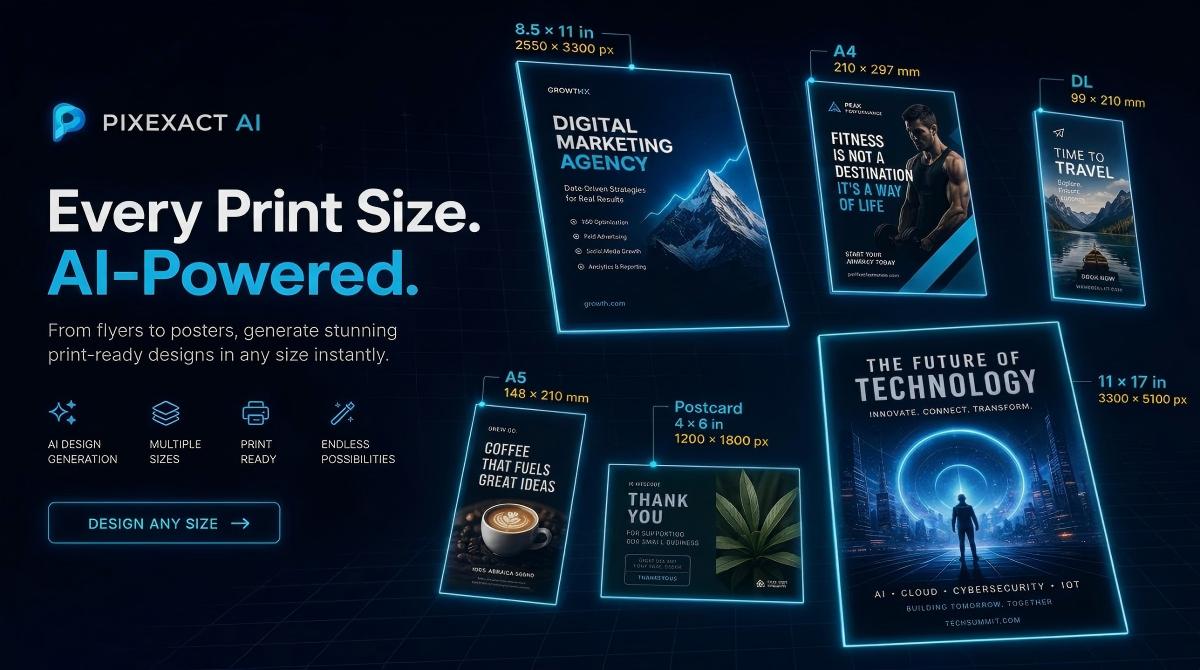
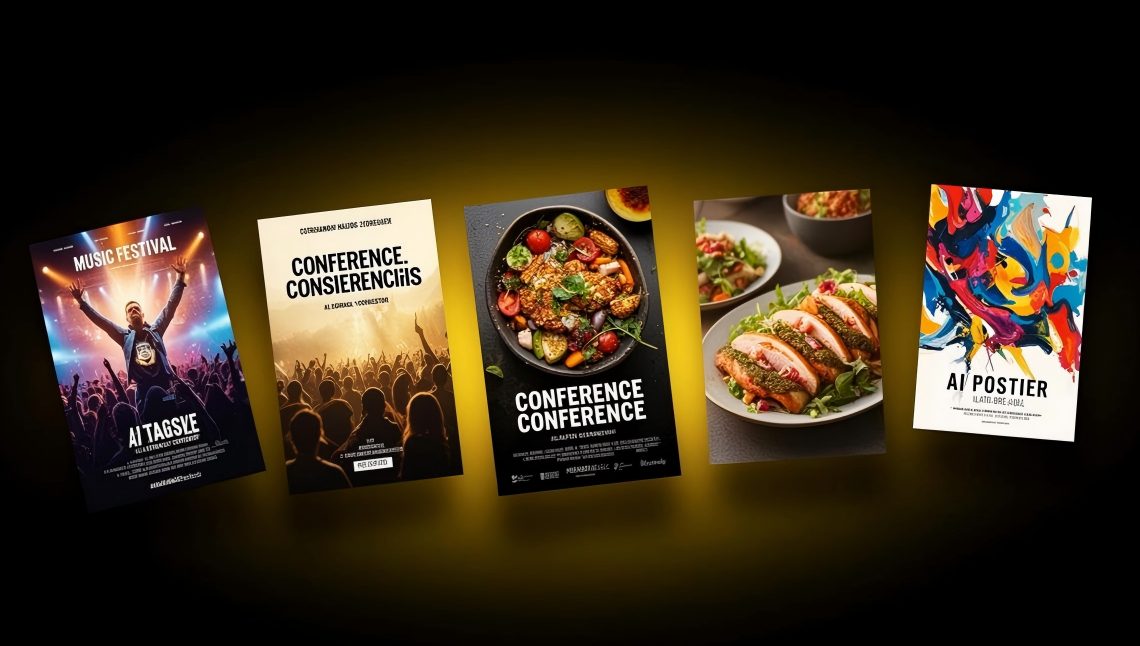
You do not need design software, templates, or a graphic designer to create a professional flyer. With an AI flyer generator, you describe what you want in plain language, pick a size, and download a finished design in seconds.
This guide walks you through the entire process using PixExact's AI Flyer Generator — from writing your first prompt to downloading a print-ready file. You will also find 8 ready-to-use prompt examples you can copy and paste right away.
What You Need Before You Start
- A clear idea of what your flyer is for (event, promotion, announcement, etc.)
- The key details to include: event name, date, time, location, contact info, and call to action
- Optional: a logo, product photo, or reference image to guide the AI's style
That is it. No Photoshop, no Illustrator, no design experience required.
How to Make a Flyer with AI in 3 Steps
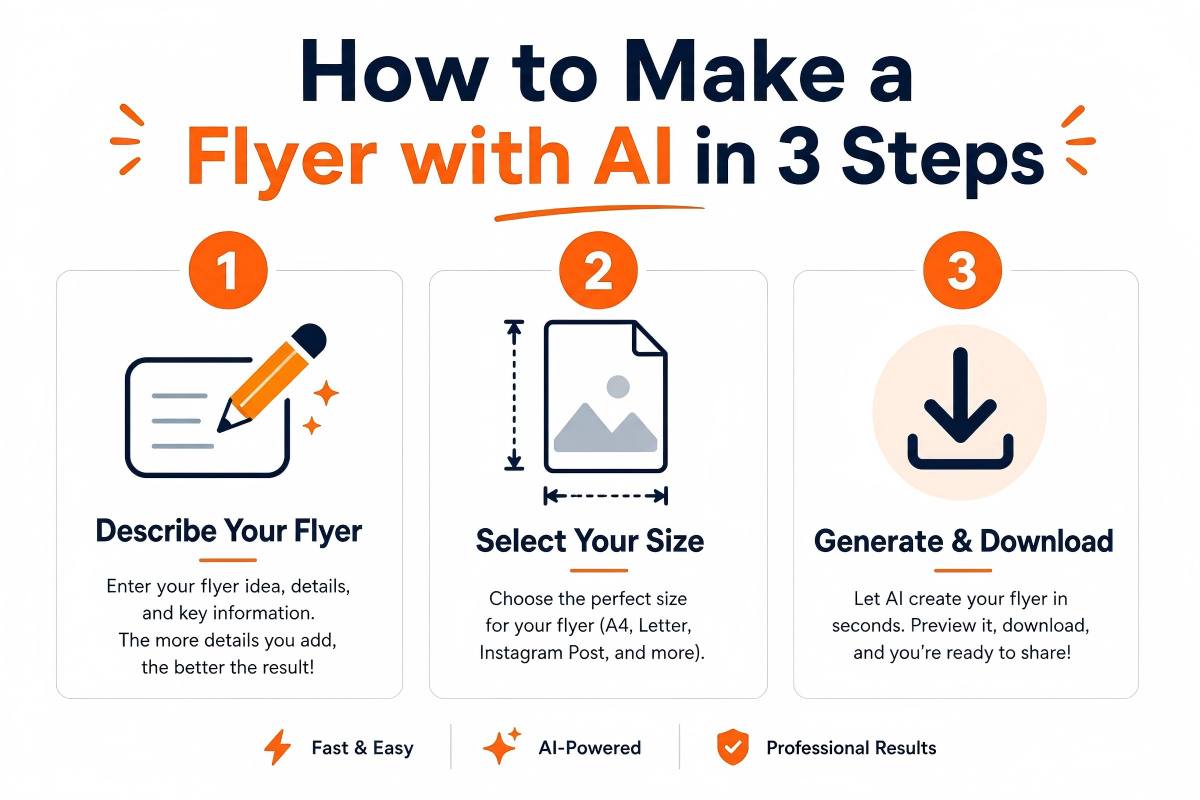
Step 1: Describe Your Flyer
Open the PixExact AI Flyer Generator. You will see a prompt box at the top of the page. This is where you tell the AI exactly what to create.
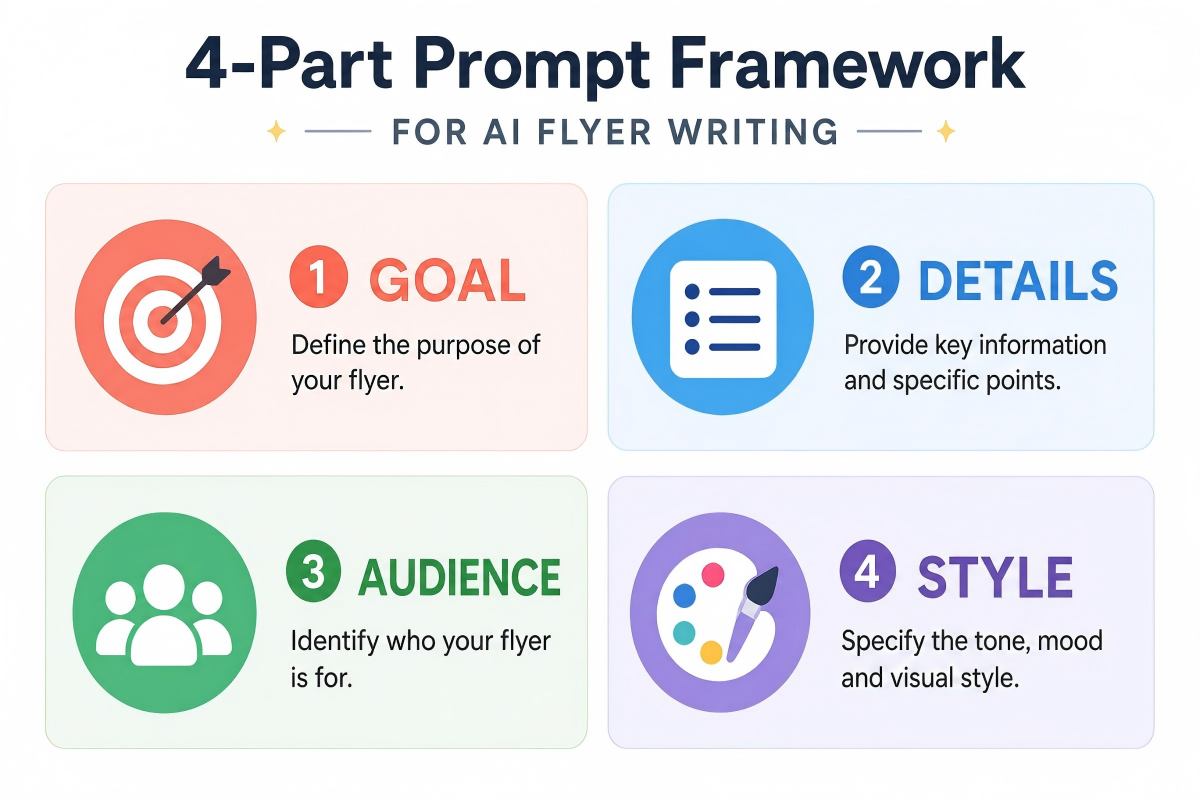
Write your prompt using this four-part framework:
- Goal: What is this flyer for? (grand opening, holiday sale, church event, birthday party)
- Details: Include every piece of text you want on the flyer — event name, date, time, address, phone number, website, and any special offer
- Audience: Who is this flyer for? (parents, local homeowners, fitness enthusiasts, church members)
- Style: Describe the mood, colors, and tone (modern, elegant, bold, playful, warm, festive)
Example prompt:
"Create a grand opening flyer for Bella's Italian Kitchen at 210 Main Street. Offer Free Tiramisu with Every Entree through July 15th. Warm and appetizing tone with terracotta and cream colors, food photography style."
Optional — Upload a Reference Image: Below the prompt box, you can upload a logo, a product photo, a brand mood board, or even an existing flyer. The AI analyzes the visual style and incorporates it into the generated design. This is PixExact image-to-flyer feature, and it is especially useful for keeping your flyer on-brand.
Step 2: Select Your Flyer Size
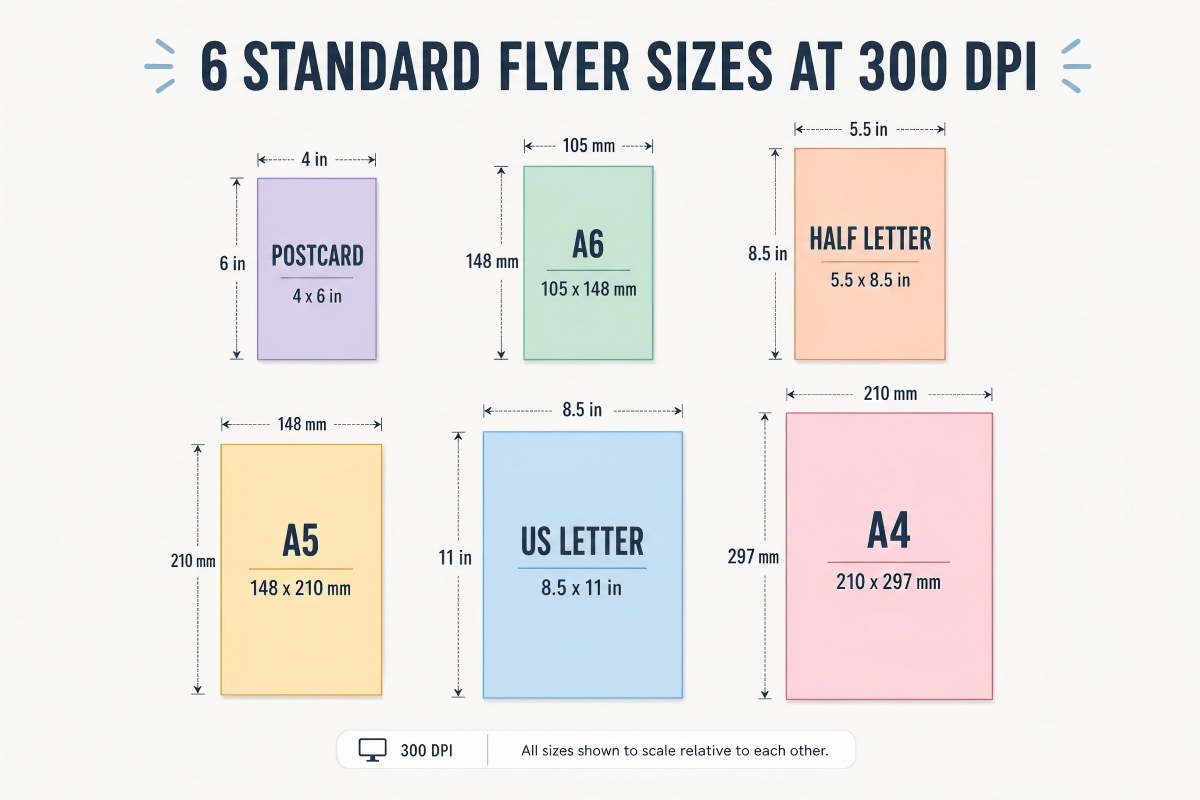
Below the prompt area, open the Flyer Size dropdown. PixExact offers six standard print sizes, all generated at 300 DPI for professional printing:
| Size Preset | Dimensions | Pixels at 300 DPI | Best For |
|---|---|---|---|
| Postcard | 4 x 6 in | 1200 x 1800 | Direct mail, save-the-date, coupons |
| A6 | 105 x 148 mm | 1240 x 1748 | Pocket handouts, mini promos |
| Half Letter | 5.5 x 8.5 in | 1650 x 2550 | Event handouts, menus, trade shows |
| A5 | 148 x 210 mm | 1748 x 2480 | Standard EU flyer, cost-effective handouts |
| US Letter | 8.5 x 11 in | 2550 x 3300 | US business flyers, bulletin boards |
| A4 | 210 x 297 mm | 2480 x 3508 | EU business flyers, catalogs |
Need a non-standard size? Select Custom and enter any width and height in pixels (up to 4096 x 4096). This is useful for digital flyers sized for social media, email headers, or specific ad platforms.
Not sure which size to pick? See our complete Flyer Size Guide for detailed recommendations by use case.
Next, choose the Number of Flyers (1 to 4). Generating multiple flyers at once gives you variations to compare. This is the fastest way to find the perfect design — the AI produces a different layout, color scheme, and composition each time.
Step 3: Generate, Add Your QR Code, and Download
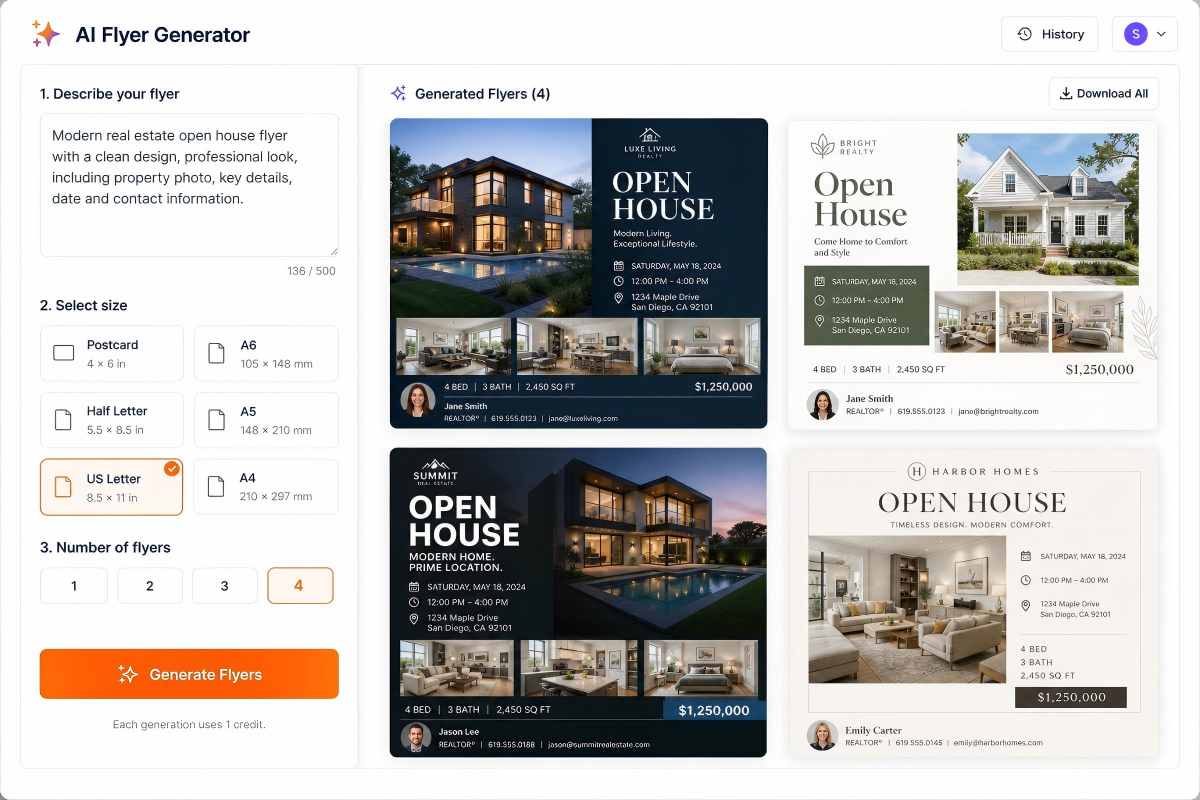
Click Generate Flyer. PixExact produces your design in seconds.
Once your flyer is generated and displayed on screen, you will see an edit button in the top-right corner of the flyer image. Click this edit button to open the editor, where you can upload your own QR code image. The AI will generate a final flyer with your real, scannable QR code embedded in the design.
Review the result. If you want adjustments:
- Tweak your prompt wording and regenerate for a different layout
- Upload a different reference image for a new style direction
- Generate 4 variations at once to compare designs side by side
When you are satisfied, download the flyer. The file is print-ready at 300 DPI — you can send it directly to a local print shop or upload it to an online printing service without any additional editing.
8 Ready-to-Use Flyer Prompt Examples
Copy any of these prompts into the AI Flyer Generator and hit generate. Each one is based on a real use case.
1. Church Event Flyer
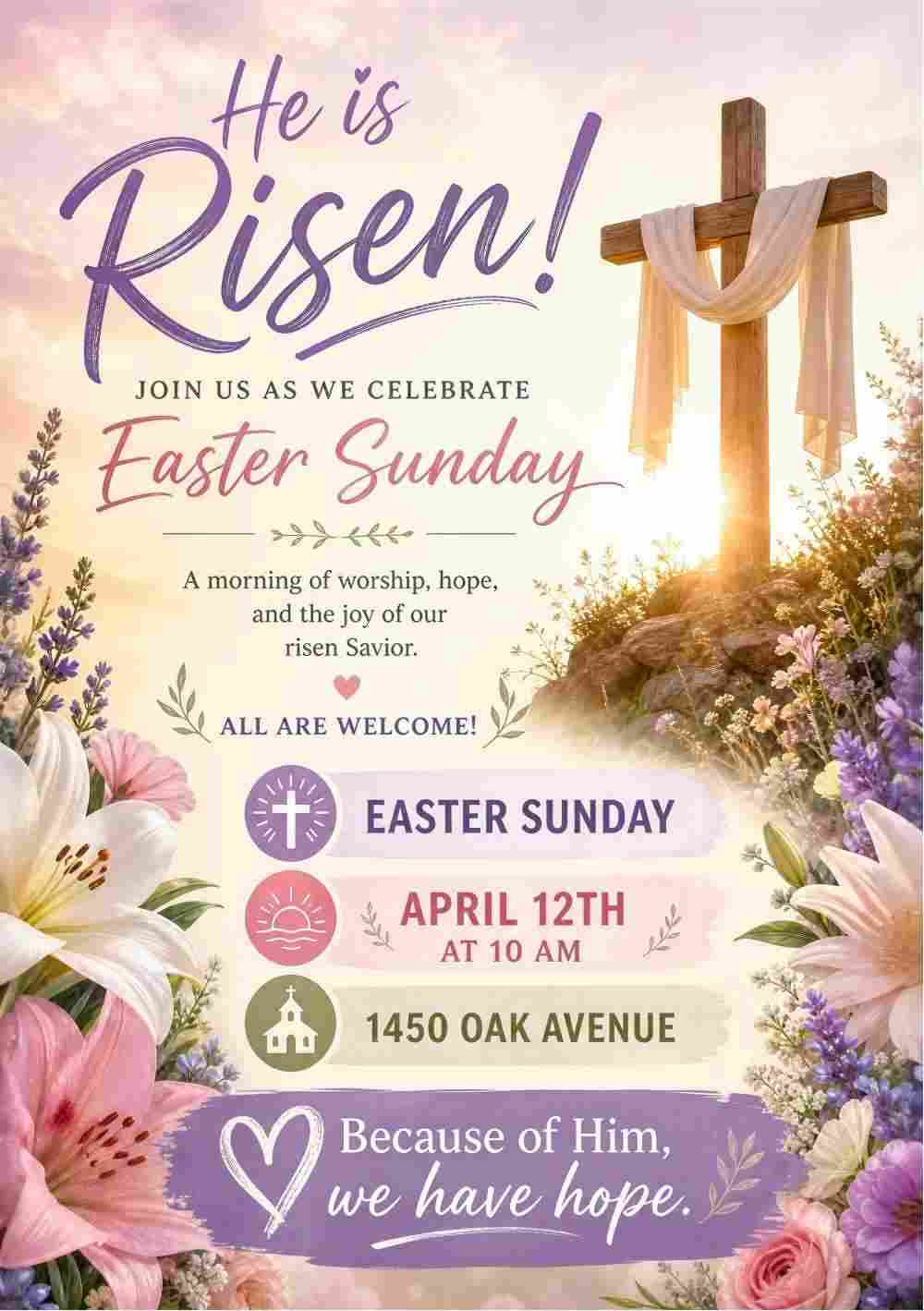
"Create a flyer for our Easter Sunday service at Grace Community Church, on April 12th at 10 AM, located at 1450 Oak Avenue. Use a warm and welcoming tone with soft pastel colors and floral or cross graphics."
2. Real Estate Open House Flyer
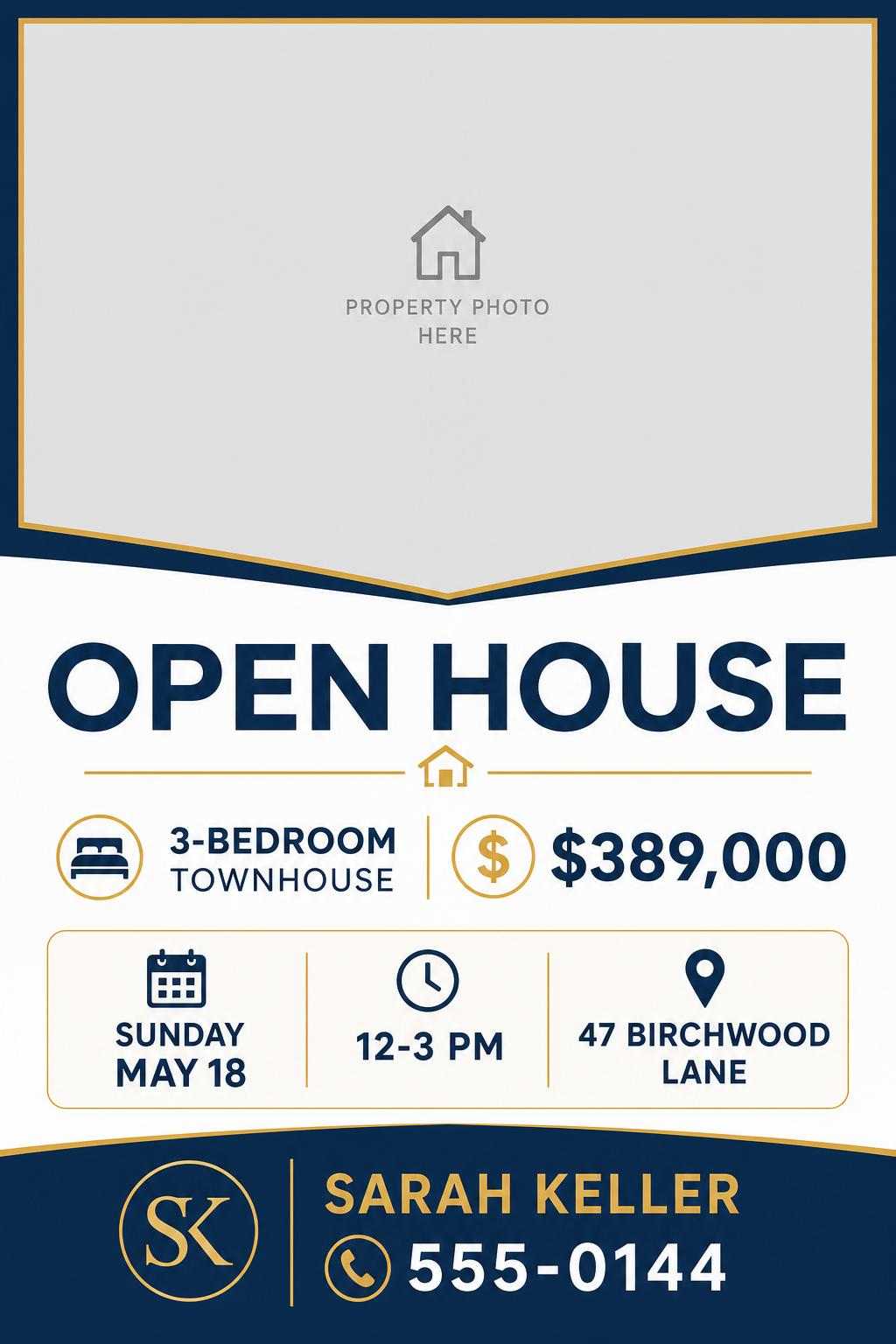
"Design an open house flyer for a 3-bedroom townhouse listed at $389,000. The open house is Sunday May 18th from 12 to 3 PM at 47 Birchwood Lane. Contact agent Sarah Keller at 555-0144. Clean and professional layout, leave space for a property photo."
3. Restaurant Grand Opening Flyer
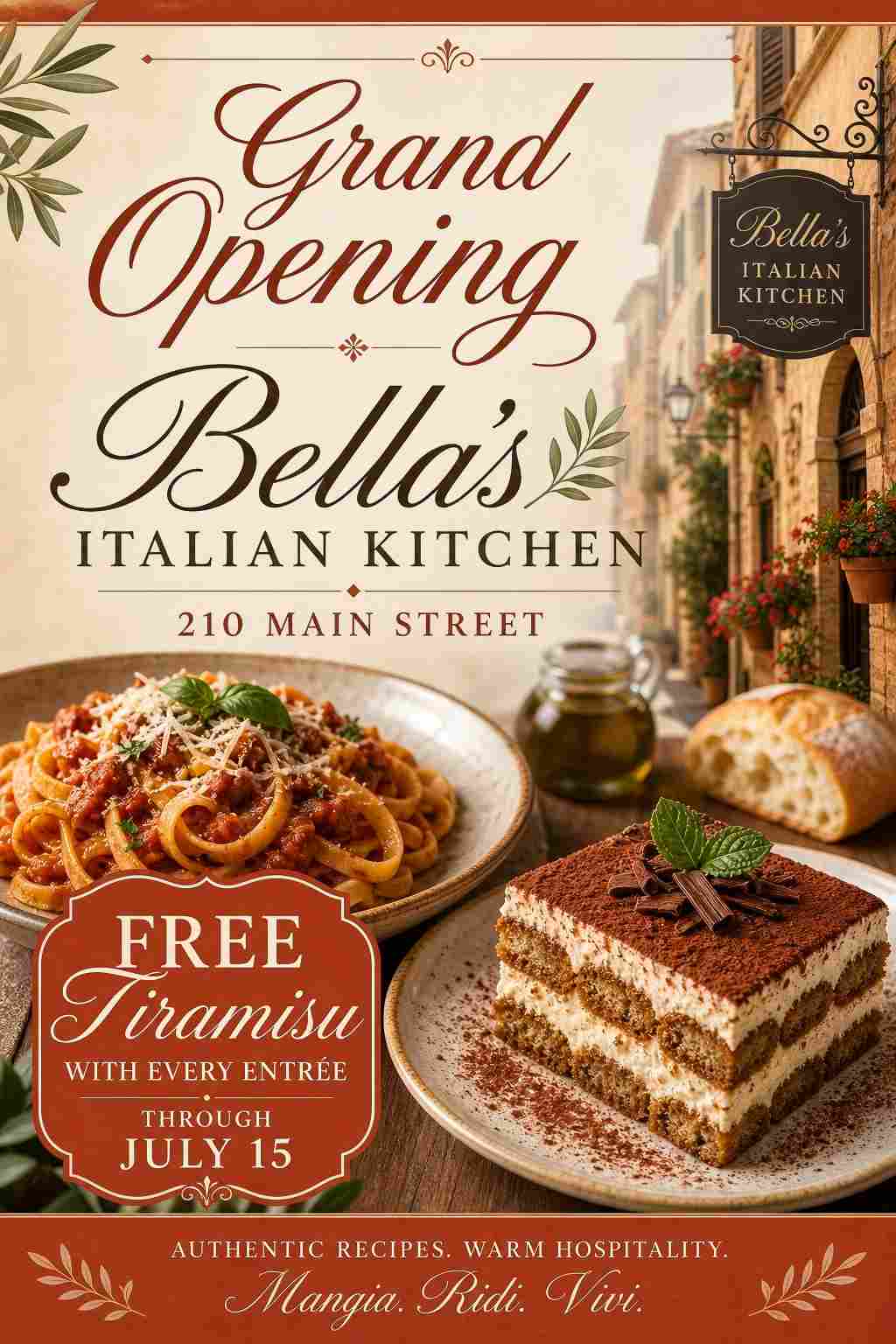
"Make a grand opening flyer for Bella's Italian Kitchen at 210 Main Street. Offer Free Tiramisu with Every Entree through July 15th. Warm and appetizing tone with terracotta and cream colors, food photography style."
4. School Event Flyer
"Create a parent-teacher conference flyer for Lincoln Elementary School. Conferences run March 3rd through 7th. Parents can sign up at lincolnelementary.org. Friendly and approachable, bright primary colors, school-themed graphics."
5. Christmas Sale Flyer
"Create a Christmas sale flyer for Pine Street Boutique. Promote 30% Off All Winter Apparel running December 15th through December 24th. Visit us at 82 Pine Street, Burlington. Cozy holiday tone with deep red and evergreen colors, snowflakes and pine branch decorations."
6. Black Friday Sale Flyer
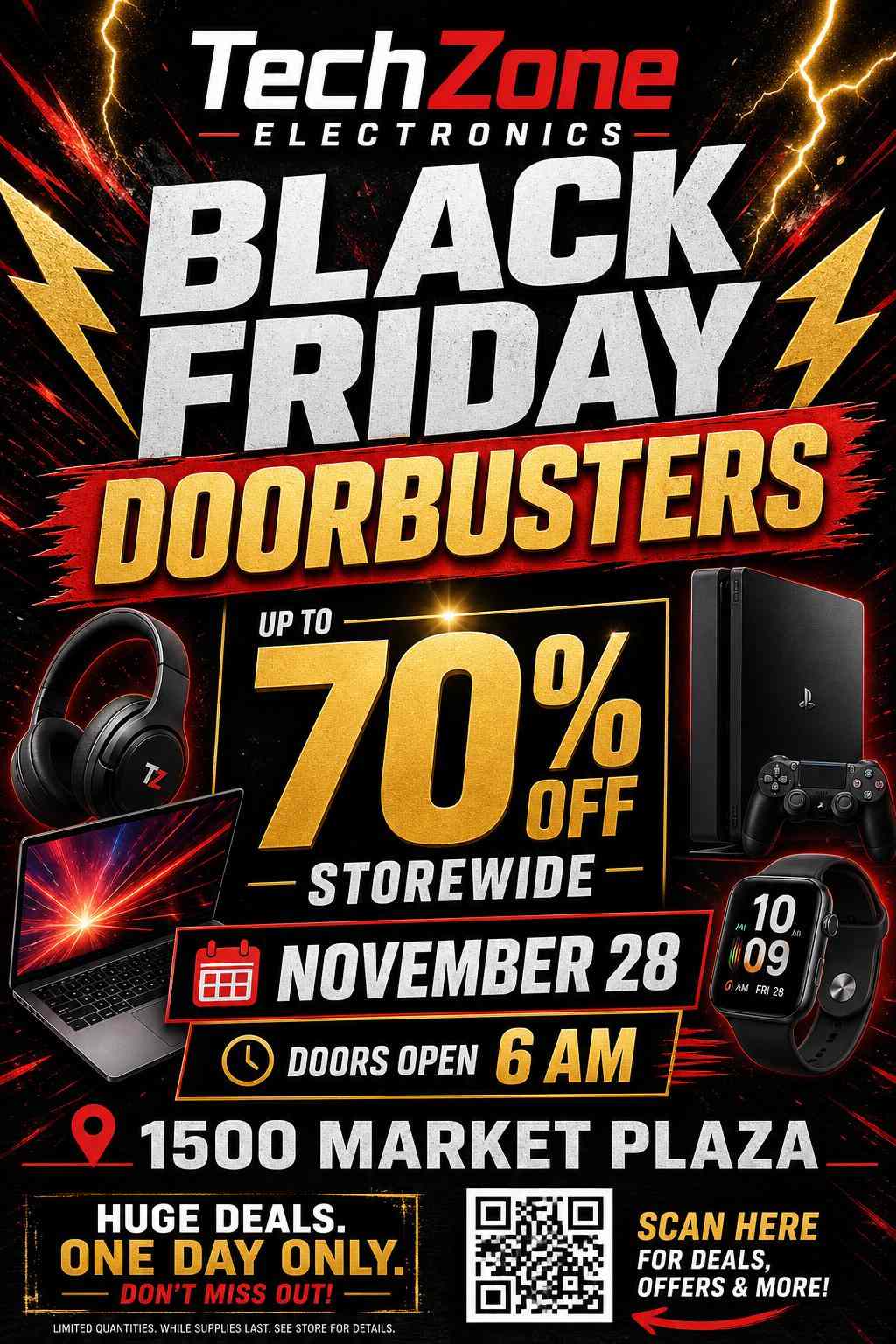
"Design a Black Friday sale flyer for TechZone Electronics. Headline: Black Friday Doorbusters. Promote Up to 70% Off Storewide on November 28th, doors open at 6 AM. Address: 1500 Market Plaza. Include a QR code linking to the full sale catalog. Bold and high-energy design with black, red, and gold colors."
7. Fitness Class Flyer
"Make a flyer for a beginner yoga class series at Sunrise Yoga Studio. First Class Free for New Members. Classes run Tuesdays and Thursdays at 7 PM, starting February 4th. Studio at 330 Willow Avenue, Suite 2. Calm and welcoming tone, soft sage green and cream colors, minimal lotus or meditation graphics."
8. Birthday Party Flyer
"Design a birthday party flyer for a Surprise 40th Birthday Party for Jessica. Event details: Saturday August 2nd, 7 PM at The Loft Venue, 22 King Street. RSVP to [email protected] by July 25th. Fun and celebratory tone, gold and black color scheme, bold typography, confetti and balloon graphics."
Tips for Writing Better Flyer Prompts
Be Specific About Text Content
The AI cannot guess your phone number, address, or event date. Write out every piece of text you want to appear on the flyer. The more specific you are, the fewer revisions you will need.
Weak prompt: "Make a flyer for a yoga studio."
Strong prompt: "Make a flyer for a beginner yoga class series at Sunrise Yoga Studio. First Class Free for New Members. Classes run Tuesdays and Thursdays at 7 PM, starting February 4th. Studio at 330 Willow Avenue, Suite 2."
Describe the Visual Style
Use adjectives that set the mood: modern, rustic, elegant, playful, bold, minimalist, festive, luxurious. Mention specific colors if you have brand guidelines (e.g., "deep navy and gold accents" or "soft pastel pink and white").
Use Reference Images for Brand Consistency
If you already have a logo, a product photo, or an existing flyer from a previous campaign, upload it as a reference image. The AI will match the color palette, typography feel, and overall aesthetic. This is the fastest way to keep a series of flyers visually consistent.
Generate Multiple Variations
Set the Number of Flyers to 4. The AI produces four completely different layouts from the same prompt. Pick the one that works best, or use different variations for A/B testing in your marketing campaigns.
AI Flyer Generator vs Template-Based Tools
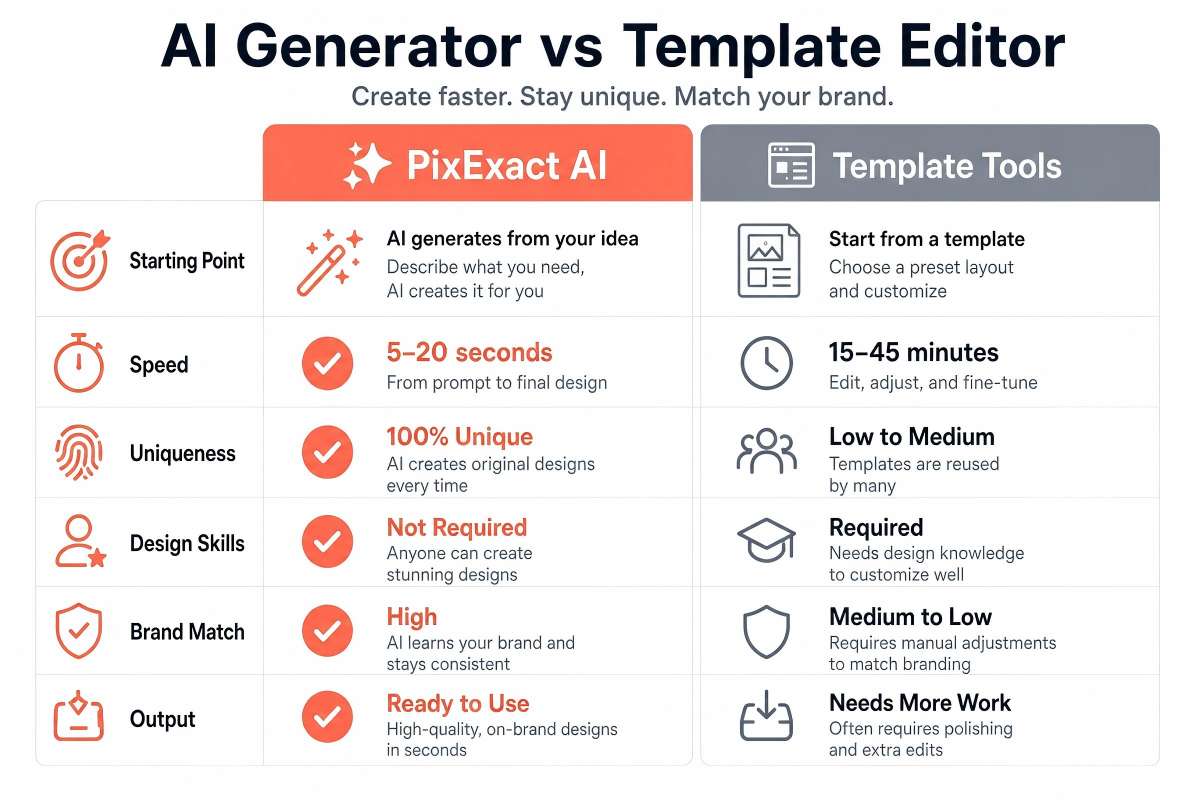
PixExact's approach is fundamentally different from template editors like Canva or Adobe Express:
| Feature | PixExact AI Flyer Generator | Template-Based Tools (Canva, Adobe Express) |
|---|---|---|
| Starting point | A text prompt describing your flyer | A pre-designed template you edit |
| Design uniqueness | Every flyer is one-of-a-kind | Multiple users share the same templates |
| Design skills needed | None — the AI handles layout, typography, and imagery | Basic — you need to rearrange elements, swap images, edit text boxes |
| Speed | Seconds per flyer | 15-45 minutes per flyer |
| Brand matching | Upload a reference image; AI matches the style | Manual: change colors, fonts, and images to match your brand |
| Output | Finished flyer, print-ready at 300 DPI | Editable file you continue to adjust |
Template editors are better when you need precise, pixel-level control over every element. PixExact is better when you want a finished flyer fast, with zero design work.
Print vs Digital: Download and Sharing Tips
For Print
- Use one of the six standard size presets (Postcard through A4) — these are all at 300 DPI
- Add 0.125 inches of bleed if your printer requires it. See our Flyer Size Guide for bleed pixel dimensions for every standard size
- Download the file and send it directly to your local print shop or upload to an online printing service
- For the best results, request a proof print before ordering in bulk
For Digital Sharing
- Use Custom size to match social media dimensions:
- Instagram Feed: 1080 x 1350 px
- Instagram / Facebook Stories: 1080 x 1920 px
- Facebook Feed: 1200 x 630 px
- For email newsletters, generate at 600 x 800 px or similar to keep file sizes manageable
- Add your real QR code before sharing — it lets viewers scan and take action immediately
Frequently Asked Questions
How do I make a flyer with AI for free?
Go to PixExact's AI Flyer Generator and sign up for a free account. Every new user receives complimentary credits. Write a prompt describing your flyer, select a size, and click Generate. Your first flyers are completely free.
What should I write in my flyer prompt?
Include four things: the purpose of the flyer (event, sale, announcement), all text details (name, date, time, address, offer, contact info), your target audience, and the visual style you want (colors, mood, tone). The more detail you provide, the better the result.
Can I upload my own logo or photo?
Yes. Below the prompt box, use the reference image upload to add your logo, product photo, or any visual reference. The AI incorporates the style and elements from your uploaded image into the generated flyer.
What sizes can I create?
PixExact offers six standard print sizes: Postcard (4 x 6 in), A6, Half Letter (5.5 x 8.5 in), A5, US Letter (8.5 x 11 in), and A4. You can also enter custom dimensions in pixels (up to 4096 x 4096) for any non-standard print or digital format.
Is the flyer print-ready?
Yes. All standard sizes are generated at 300 DPI, which is the professional standard for commercial printing. You can download the file and send it to any printer without additional processing.
Can I add a real QR code?
Yes. The AI generates a QR code placeholder in the layout. After generation, click the edit button on the QR code to replace it with your actual URL. The final file includes a real, scannable QR code.
How is this different from Canva?
Canva uses pre-made templates that you manually edit — swapping images, changing text, adjusting layout. PixExact generates a complete, unique flyer from a text prompt in seconds, with no manual editing required. Canva gives you more element-level control; PixExact gives you a finished design faster.
Start Making Your Flyer Now
You have the prompt framework, the size presets, and 8 ready-to-use examples. The only step left is to try it.
Open the AI Flyer Generator — describe your flyer, pick your size, and download a print-ready design in seconds.