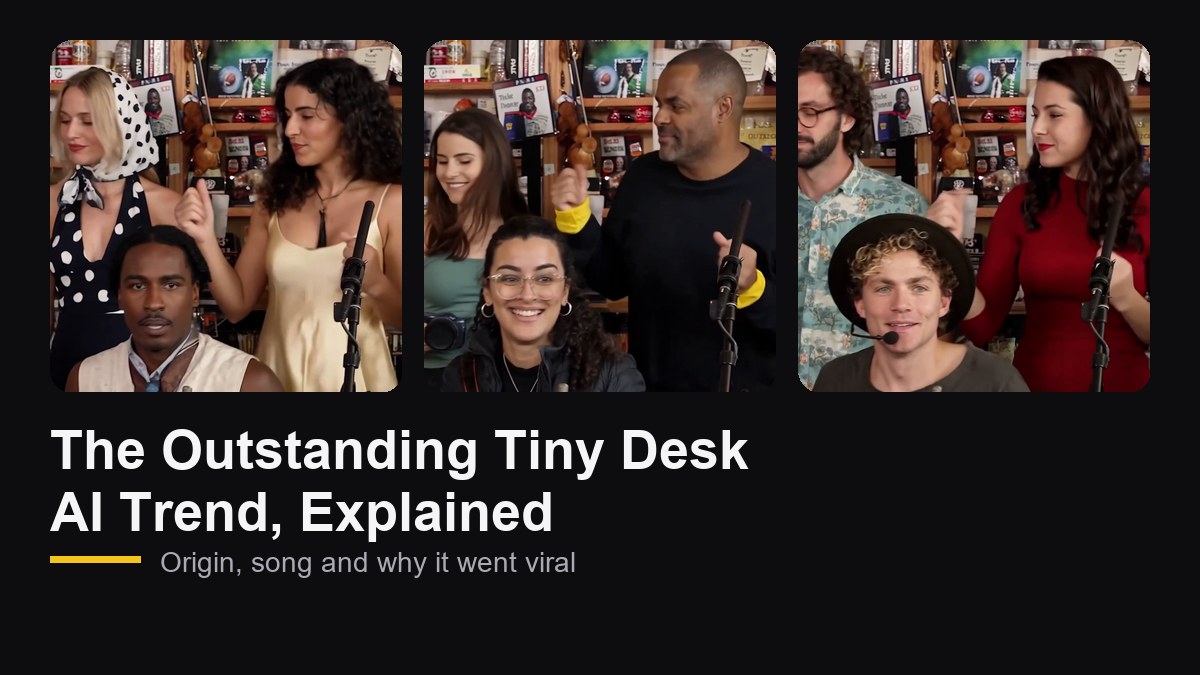
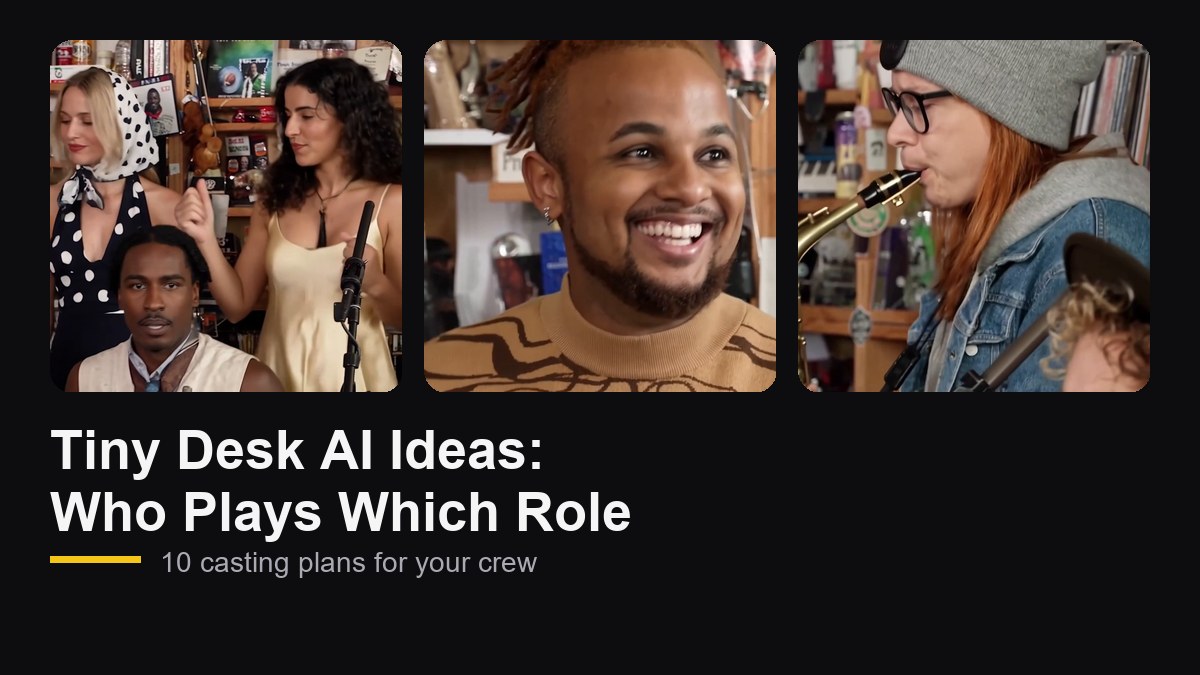
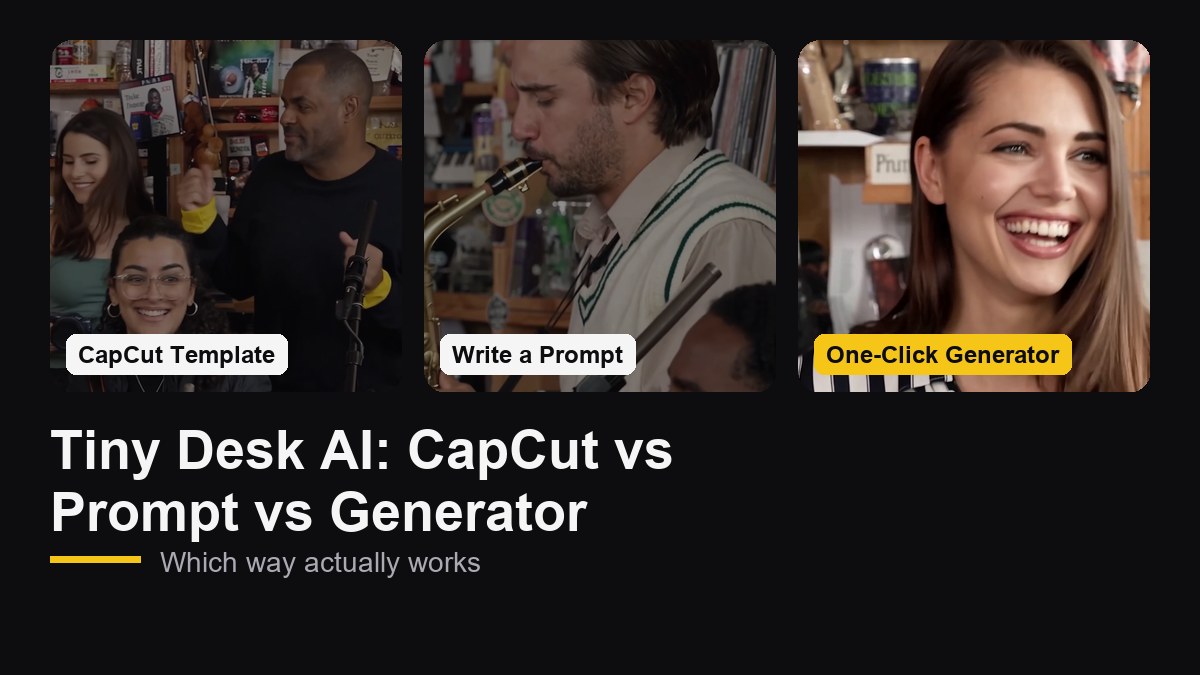
The Outstanding Tiny Desk AI video takes the joyful closing seconds of Charlie Wilson's NPR Tiny Desk performance and puts new faces in the band. You have probably seen the version with losing college football coaches. This guide shows you how to make one starring you, your friends or your whole office.
The short version: open the Outstanding Tiny Desk AI video generator, upload a photo of your Main Star (plus up to four friends if you like), click Generate Video, and download a 19-second vertical video a few minutes later. No prompts and no editing.
What You Will Make
You get the same clip everyone recognizes, with your people in it:
- Length: about 19 seconds
- Format: vertical 9:16 MP4 at 720p, ready for TikTok, Instagram Reels and YouTube Shorts
- Sound: the original live recording of "Outstanding"
- What changes: faces, hair and outfits come from your photos
- What stays: the room, the camera moves, the cuts and the timing of every laugh
Here is a finished example with five new faces:
New to the meme? Read where the Outstanding Tiny Desk AI trend came from first. It explains why the joke works, which makes casting a lot easier.
The 5 Shots in 19 Seconds
Before you pick photos, it helps to know exactly who shows up where. The clip has five shots and five performers. We timed every cut:
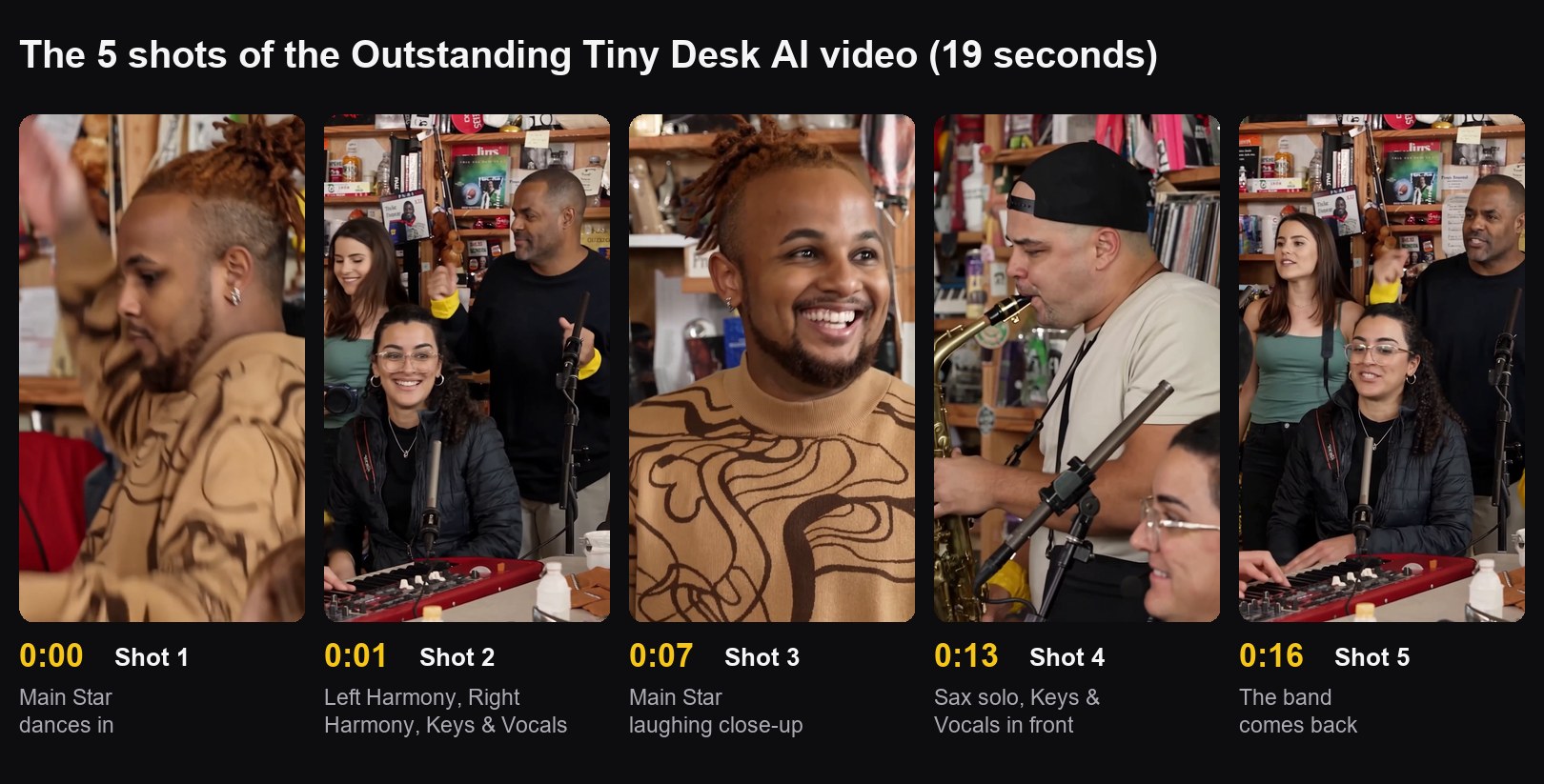
| Time | Shot | Who is on screen |
|---|---|---|
| 0:00 to 0:01 | Shot 1 | Main Star dances into frame, seen from the side |
| 0:01 to 0:07 | Shot 2 | Left Harmony and Right Harmony at the back, Keys & Vocals at the red keyboard |
| 0:07 to 0:13 | Shot 3 | Main Star in a long laughing close-up |
| 0:13 to 0:16 | Shot 4 | Saxophone solo, with Keys & Vocals in the foreground |
| 0:16 to 0:19 | Shot 5 | The band shot again |
Two things stand out once you add up the screen time:
- The Main Star owns the punchline. About 8 seconds in total, including the 6-second laughing close-up that everyone screenshots.
- Keys & Vocals is on screen the longest. About 11 seconds, because this person appears in both band shots and again in front of the sax player.
The two harmony singers get about 8 seconds each. The sax player gets about 3 seconds, but it is the solo, so it is the moment people rewind.
Before You Upload: Cast the Band
The creator of the original viral version said the casting was what made it work. The same is true for yours. A quick rule for each role:
- Main Star: the person the video is about. The birthday person, the last-place fantasy manager, the coworker on their last day.
- Keys & Vocals: your second-biggest personality. They sing lead in the band shots and stay on screen the longest.
- Left Harmony and Right Harmony: a pair. Best friends, roommates, the two people who always back each other up.
- Saxophone: the surprise. The quiet one, the boss, the friend nobody expects to see holding a sax.
Want ready-made line-ups? Our Tiny Desk AI ideas guide has 10 full casting plans with captions.
Step 1: Choose Separate Photos or Group Photo
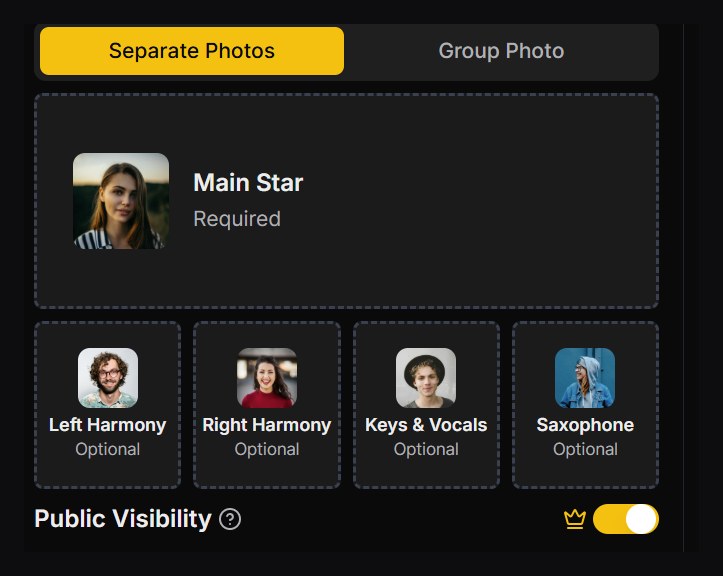
The generator has two upload modes.
Separate Photos (recommended). You upload one photo per role. The Main Star is the only required spot. Each of the other four cards shows a default band member, and anyone you skip is played by that default performer. So you can make a solo, a trio or the full five.
Group Photo. You upload one picture with five people standing side by side. Roles are assigned from left to right: Main Star, Left Harmony, Right Harmony, Keys & Vocals, Saxophone. Put your Main Star on the far left.
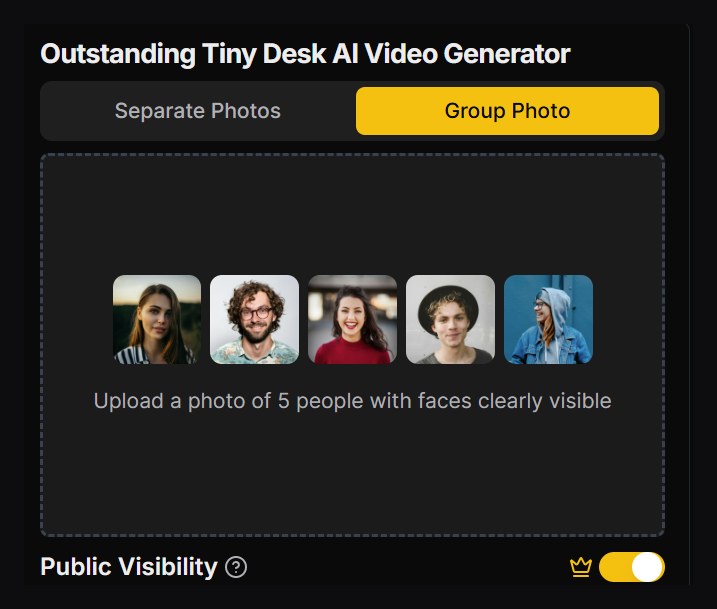
Group Photo is built for exactly five people with every face clearly visible. If you have fewer than five, or someone is half hidden, switch to Separate Photos. You will get a better likeness for everyone, because each face gets its own photo.
Step 2: Add Photos and Generate
- Click a role card. Pick a photo from your assets or upload one from your device.
- Fill the Main Star first, then any of the other four roles you want to cast.
- Check the Public Visibility switch. Videos are public by default. Paid members can turn it off before generating.
- Check Required Credits. Each Tiny Desk video costs 180 credits. You can top up on the pricing page.
- Click Generate Video.
Most videos are ready in a few minutes. If a render fails, the 180 credits go back to your account automatically. Finished videos are also saved in your assets, so you can close the tab and come back later.
Step 3: Preview, Download and Post
When the video is ready, it plays in the preview panel on the right. Watch it once all the way through, then download the MP4.
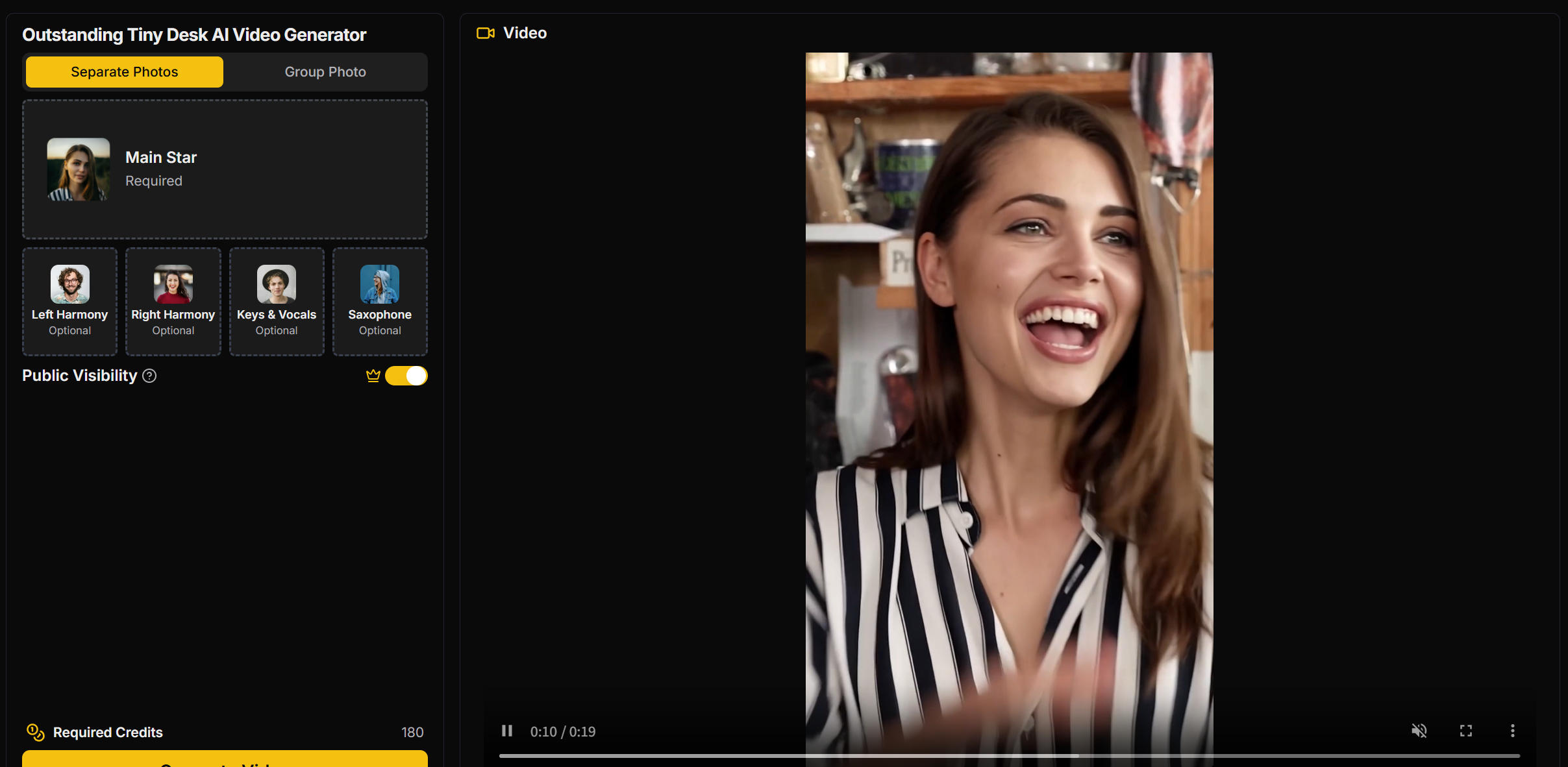
Before you post, run through this short checklist.
Label it as AI
The video is a parody, and it looks real enough that someone could be fooled. Most platforms ask you to disclose realistic AI video:
- TikTok: open More options on the posting screen and switch on AI-generated content.
- Instagram Reels: look for the AI label option under Advanced settings before you share.
- YouTube Shorts: mark the video as altered or synthetic content when you upload.
Menu names change from time to time, so look for the AI or synthetic content option if the wording is slightly different. Adding "AI parody" to your caption also helps.
If the sound gets muted
Some platforms mute copyrighted music in uploaded videos. If that happens, mute the original audio in the app's editor, add "Outstanding" by The Gap Band from the app's own sound library, and slide it until the laughing close-up lines up with the singing.
Write a caption that delivers the punchline
The video does the singing. Your caption explains why this group, this week, deserves a celebration. Name the loss, the birthday or the last day in a few words, then tag the band. Hashtags like #tinydesk, #tinydeskai and #outstanding help people who are following the trend find you.
Get the band's OK
Everyone in the video should be fine with being in it, especially if your account is public.
Photo Tips That Prevent Most Problems
The AI can only match faces it can see clearly. A minute spent choosing photos saves you a second render.
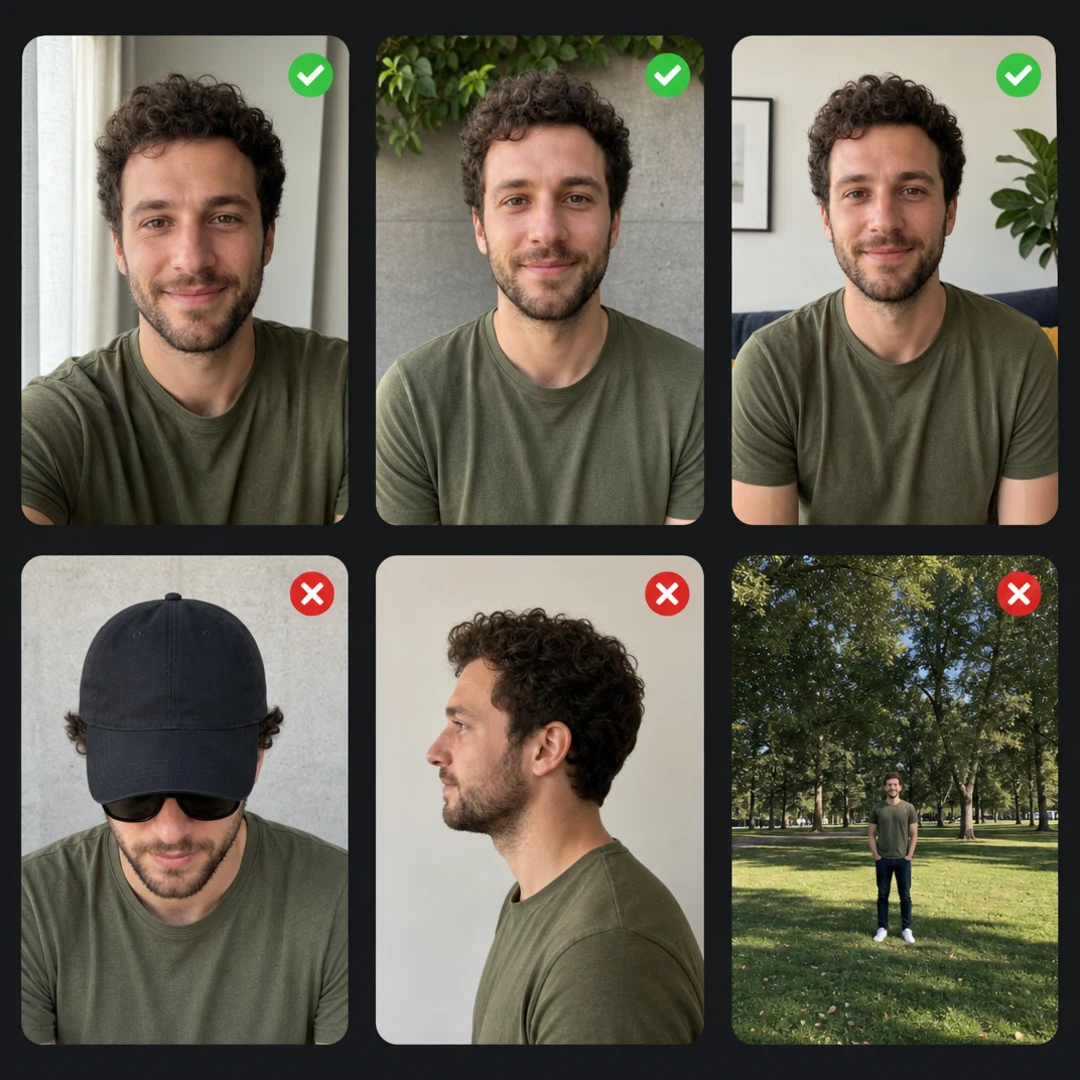
- Front-facing, chest-up photos work best. The face should take up a good part of the frame.
- One person per photo in Separate Photos mode. A second face in the picture can end up in the wrong role.
- A different person for every role. Using the same face twice does not improve the result.
- Skip sunglasses, low caps and side angles. These are the most common reasons a face looks off.
- Natural light beats filters. Heavy beauty filters and AI-edited selfies make faces harder to match.
If someone looks off
| What you see | Most likely cause | Fix |
|---|---|---|
| A face does not look like your friend | Side angle, sunglasses or a small face in the photo | Use a closer, front-facing photo |
| Two people swapped roles | Group photo order or two faces in one photo | Use Separate Photos with one person per photo |
| An extra person appears | A second face in one of the uploads | Crop the photo to one person |
| Hair or outfit is wrong | The photo shows only part of the head or body | Use a photo that shows hair and shoulders clearly |
Solo, Trio or Full Band
You do not need five people. Here is how the three common set-ups play out:
- Solo: upload only the Main Star. The default band plays around you, and you still get the laugh close-up.
- Trio: add Left Harmony and Right Harmony. Your friends take over the band shots, and the default performers cover keys and sax.
- Full band: fill all five roles so every face on screen is someone you know.
Here is what a solo looks like, with the default band playing around the Main Star:
Can You Make It Without a Template?
Yes, but it takes longer. The creator of the original version took the clip, made it vertical and ran it through Higgsfield with photos of each person, which took about 30 minutes. Doing it yourself means preparing the source clip, giving the model a reference for every person, fixing faces that drift in the small band shots and adding the audio back. If you want to try, we compare every route in CapCut template vs prompt vs AI generator.
Frequently Asked Questions
Do I need five people to make an Outstanding Tiny Desk AI video?
No. Only the Main Star is required. Any role you leave empty is played by the default band member shown on that card.
How much does a Tiny Desk AI video cost on PixExact?
Each video costs 180 credits. If generation fails, the credits are refunded automatically.
How long does it take to generate?
Usually a few minutes. The finished video is saved in your assets, so you do not have to keep the page open.
Can I put the same person in two roles?
We do not recommend it. Use a different person for each role. The same face in two spots does not make the result better and can confuse who goes where.
Will my friends keep their own outfits?
Yes. Faces, hair and outfits follow your photos, so nobody ends up in someone else's clothes or team gear.
Can I keep my video private?
Videos are public by default. Paid members can turn off Public Visibility before generating.
Is this an official NPR Tiny Desk video?
No. It is a fan-made parody format. PixExact is not affiliated with NPR, Tiny Desk Concerts, Charlie Wilson or The Gap Band.
Make Your Tiny Desk Video
Pick your Main Star, choose a few clear photos and let the band play. Your crew can be on screen singing "Outstanding" in a few minutes.